How to Upload Files to Google Drive and Share a Link
Email is useful for sending files, but large attachments, outdated copies, and extra versions can make sharing harder to manage.
Google Drive gives you a cleaner way to share files: upload once, share a single link, and control who can access the file at any time.
But uploading a file to Google Drive does not automatically make it shareable. The file stays private until you change its access settings. Before you send the link, set the correct access level so recipients do not see a Request access page instead of the file.
In this tutorial, you will learn three ways to upload files to Google Drive and share a working link, with guidance on when to use each method.
Table of Contents
Video Tutorial
Prerequisites
Before you begin, make sure you have the basic access needed to upload files and share working links from Google Drive.
- A Google account with access to Google Drive
- The files saved on your computer or phone
- Knowledge of who needs the files, you will set their access level (Viewer, Commenter, or Editor) when you share
Uploading Files to Google Drive and Sharing the Link on the Web
You can upload files to Google Drive and share a link directly from your browser. This works best when you're on a desktop or laptop and need to upload one or a few files.
Uploading the File
- Go to Google Drive and sign in.
- Click the + New button in the top-left corner.

- Select File upload.
- Choose your files and click Open.
You can also drag and drop files directly into the Google Drive window. Google Drive uploads them automatically. If you are uploading a ZIP file, see how to upload a ZIP file to Google Drive for ZIP-specific steps and naming tips.
Sharing the File
Once the upload finishes, share the file:
-
Right-click the file and select Share > Share.
-
Under General access, click the dropdown next to Restricted, then select Anyone with the link.
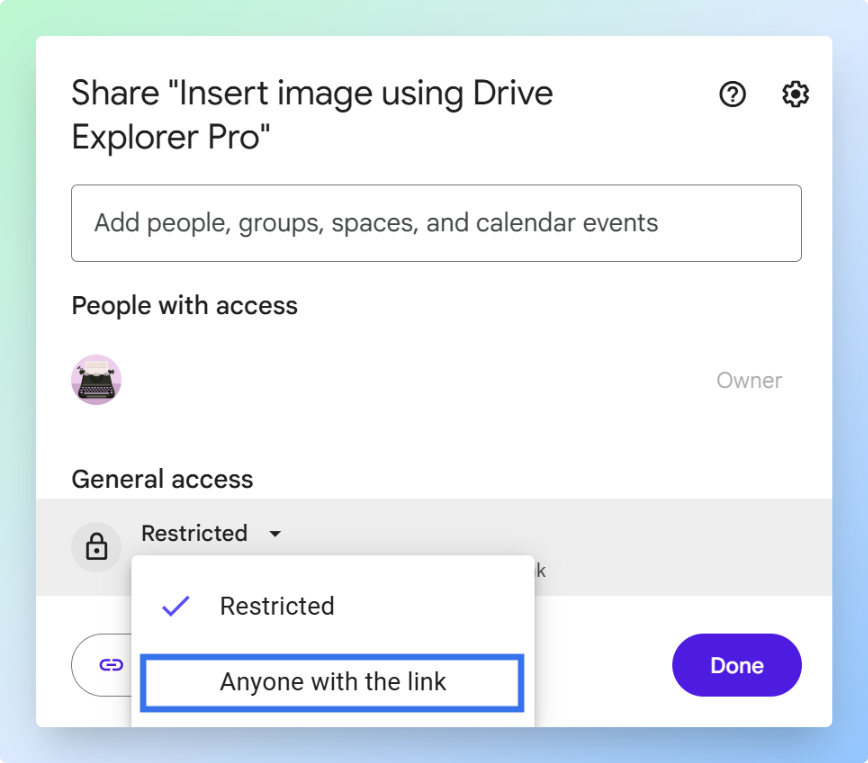
-
Set the permission level by clicking the dropdown next to the role (for example, Viewer), then choose one of the following:
- Viewer - Can only view the file
- Commenter - Can view and comment, but cannot edit
- Editor - Can view, comment, and edit the file
For most file sharing, choose Viewer. It lets recipients open the file without giving them editing control.
-
Click Copy link to copy the link, then click Done.
-
Before sending the link, open it in a private or incognito browser window (press Ctrl + Shift + N in Chrome) where you are not signed in to Google. If the file opens, the sharing settings are correct.
Paste the link into an email, chat message, or document. Recipients can open the file with the permission level you selected.
Uploading Files to Google Drive and Sharing the Link on Mobile
You can upload a file to Google Drive from your phone and send the link through WhatsApp, email, or another messaging app.
Uploading the File
-
Open the Google Drive app on your phone.
-
Tap the + New button.

-
Tap Upload.
-
Choose the file you want to upload.
-
Tap Upload.
-
Wait for the upload to finish.
Once the upload finishes, the file appears in Google Drive. Now change the access settings so other people can open it from a link.
Sharing the File
- Tap the three-dot menu next to the uploaded file.
 2. Tap Manage access.
3. Under General access, tap Change.
4. Select Anyone with the link.
5. Set the permission level to Viewer. This lets recipients open
the file without being able to edit or delete it.
6. Tap Copy link or the link icon.
2. Tap Manage access.
3. Under General access, tap Change.
4. Select Anyone with the link.
5. Set the permission level to Viewer. This lets recipients open
the file without being able to edit or delete it.
6. Tap Copy link or the link icon.
You can now paste the link into any messaging or email app on your phone.
The mobile app works well for quick sharing. If the file needs to go into a team folder, see how to upload files to a shared Google Drive folder. If you upload multiple files and need to keep every link organized, the next section gives you a faster workflow inside Google Sheets.
Uploading Multiple Files and Sharing Links with Drive Explorer Pro
Drive Explorer Pro lets you upload multiple files to Google Drive and automatically log their details, including shareable links into a Google Sheets spreadsheet.
This is the right approach when you're uploading several files and need to track and share all their links without doing it manually one by one.
Why Use Drive Explorer Pro
- Upload several files in one workflow.
- Set sharing access before upload, so each file gets a working link.
- Log file names, links, file sizes, and file types automatically.
- Share one spreadsheet instead of sending many separate links.
Install Drive Explorer Pro from the Google Workspace Marketplace:
Launching Drive Explorer Pro
Launch the add-on from inside Google Sheets once it's installed.
- Open Google Sheets.
- Go to Extensions > Drive Explorer Pro > Open Drive Explorer Pro.
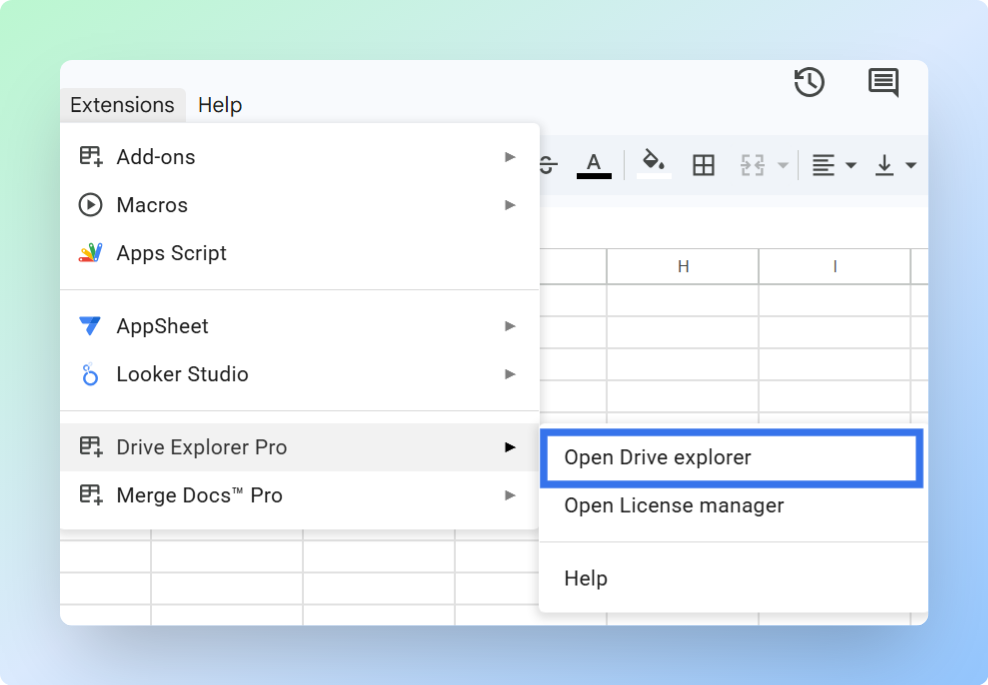
- The Drive Explorer Pro sidebar opens on the right side of your sheet.
Before uploading, complete this one-time setup. Drive Explorer Pro can reuse these settings each time you upload files:
- Folder - where the files will be saved
- File details - what information appears in Google Sheets
- Sharing access - who can open the file links
Setting Your Destination Folder
Choose the Google Drive folder where your uploaded files will be saved.
- In the sidebar, click Change under the Default Google Drive folder section.
- Browse to your preferred folder and select it.
Configuring File Attributes to List in Your Sheet
Set up which file details Drive Explorer Pro logs into your spreadsheet before you upload anything.
- Click the List Files tab in the sidebar.
- Under Start listing file from, choose one of the following:
- Currently selected cell - logs data starting from wherever your cursor is in the sheet.
- Append below existing data - adds new rows below any content already in the sheet.
- Under Select File Attributes to list, choose the file details you want logged as columns. Options include:
| Attribute | What It Logs | Best For |
|---|---|---|
| File Name Linked to URL | Clickable file name that opens the file in Google Drive | When recipients need to open the file directly from the sheet |
| File URL | Standard link that opens the file in Google Drive | Copying and sharing the file link |
| Direct Download Link | Link that downloads the file immediately | When recipients need to download the file |
| File Size (MB) | File size in megabytes | Tracking large files |
| Mime Type | File format, such as application/pdf or image/jpeg | Filtering or organizing different file types |
| File ID | Unique identifier for the file | Automations or advanced workflows |
| Image Preview | Thumbnail preview inside the cell, for image files only | Previewing image files inside Google Sheets |
For most file-sharing workflows, select File Name Linked to URL, File URL, Direct Download Link, and File Size (MB).
- Click Save Selected Settings as Default to keep these preferences for future uploads.
Setting Sharing Permissions Before You Upload
Set the sharing access before uploading so each file gets a working shareable link when the upload finishes.
- Go to the Settings tab in the sidebar.
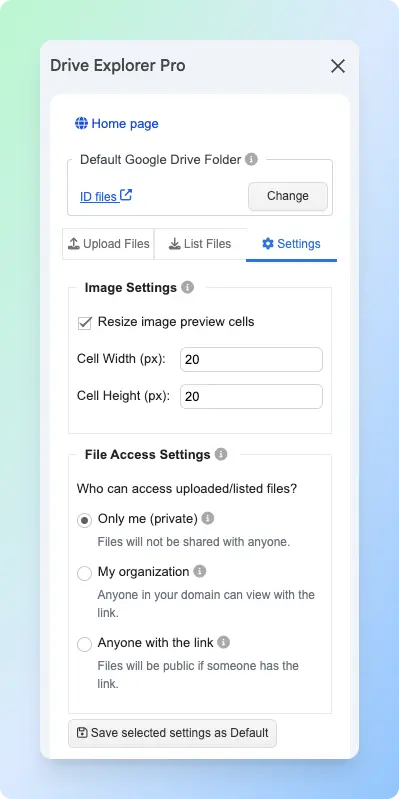
- Under File Access Settings, choose the access level you need.
| File Access Setting | What It Means |
|---|---|
| Only me (private) | Only you can open the files. |
| My organization | People in your organization can open the files when they have the link. |
| Anyone with the link | Anyone with the link can open the files. |
For this tutorial, select Anyone with the link.
- Click Save Selected Settings as Default.
Drive Explorer Pro applies this setting during upload. Each uploaded file gets a shareable link when the upload finishes.
Note: This setting applies only to files you upload after saving the setting. It does not update the permissions of files that are already in Google Drive.
Uploading Files and Generating Links
With your folder, attributes, and sharing settings configured, you're ready to upload.
-
Click the Upload files tab in the sidebar.
-
Drag and drop files from your computer into the upload box, or click the box to browse and select files manually.
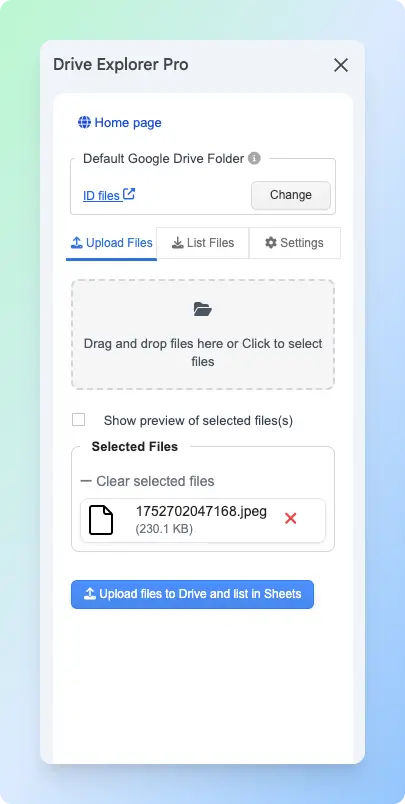
You can drag files to reorder them before uploading. The order you set here is the order they appear in your sheet.
-
(Optional) Check Show preview of selected files if you're uploading photos and want thumbnail previews in your sheet.
-
Click Upload files to Drive and list in Sheets.
Drive Explorer Pro uploads each file to your chosen Google Drive folder and immediately logs the selected file details as new rows in your spreadsheet, including the shareable link in the relevant column.
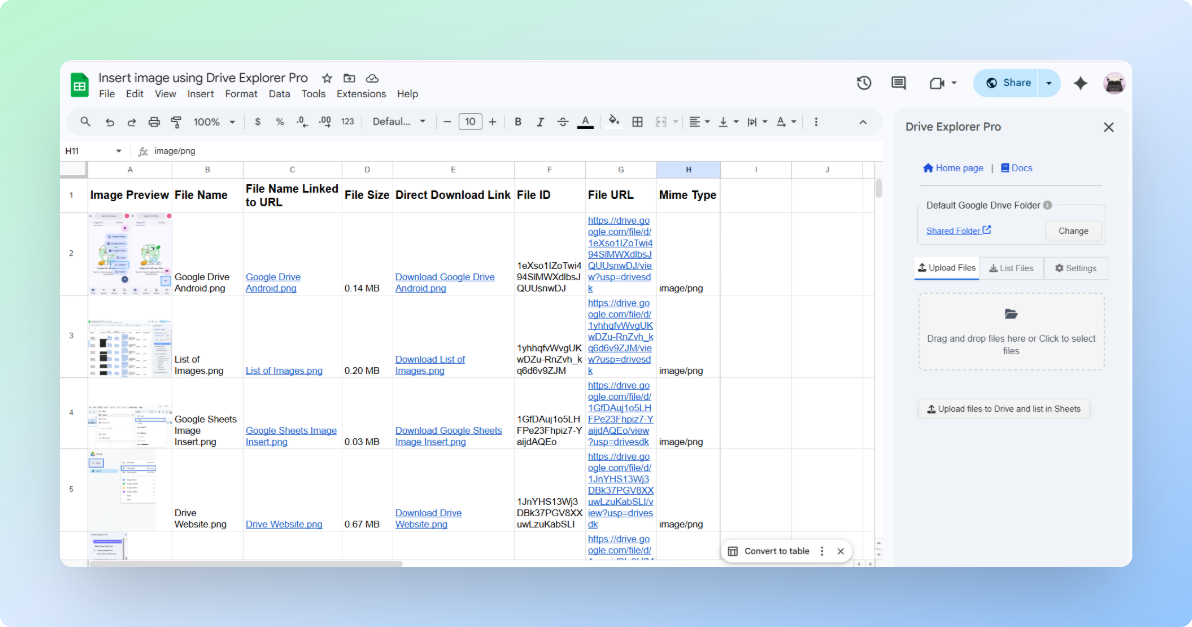
To share an individual file, copy the link from the File URL or Direct Download Link column and paste it wherever you need.
If you want recipients to download the file immediately instead of opening a preview, see how to create a direct download link in Google Drive for all file types including Google Docs, Sheets, and Slides.
If the files are already in Google Drive and you only need their links organized in a sheet, see how to link a Google Drive file to Google Sheets.
Sharing All File Links at Once
If you need to share multiple file links, share the entire spreadsheet instead of sending each link separately.
Important: The Google Sheets link and the file links have separate access settings. You must share both for recipients to open everything. Because you already set the uploaded files to Anyone with the link in the Settings tab, the file links are ready. The steps below share the Google Sheets file.
- Click Share in the top-right corner of Google Sheets.
- Under General access, change Restricted to Anyone with the link.
- Set the permission to Viewer.
- Click Copy link, then Done.
Send this one link to your team or clients. They open the sheet, see every file, and click whichever link they need, without you sending anything separately.
If you are uploading media files, use the dedicated guides for uploading photos to Google Drive and sharing a link or uploading videos to Google Drive and sharing a link. Those guides include media-specific steps, sharing notes, and workflow details.
Conclusion
You now have three ways to upload files to Google Drive and share a working link.
- Use the web app for a quick upload from your browser when you are on a desktop or laptop.
- Use the mobile app when the file is on your phone and you need to share it right away.
- Use Drive Explorer Pro when you upload multiple files and want every link, file size, file type, and direct download link recorded in Google Sheets automatically.
Whichever method you use, change General access from Restricted to Anyone with the link before sharing. If you skip this step, the recipient sees an access request page instead of the file.