How to Create a Direct Download Link in Google Drive (4 Methods)
A regular Google Drive share link usually opens the file in a preview, viewer, or editor page. That works when you want someone to view the file first, but it adds an extra step when your goal is to make the file download directly.
A direct download link is designed to start the download instead of opening the normal Google Drive preview page. This is useful for PDF handouts, templates, images, videos, email links, website buttons, and other files where the expected action is download, not preview.
The link still follows the file’s Google Drive access settings, so recipients need permission to open the file. The link format also changes based on the file type, such as uploaded files, Google Docs, Google Slides, or Google Sheets.
In this guide, you will learn how to create a direct download link in Google Drive using four methods, along with guidance on when to use each one.
Table of Contents
Video Tutorial
Prerequisites
Before you create a Google Drive direct download link, make sure you have:
- A Google account with access to Google Drive, so you can create share links and control access settings.
- Files stored in Google Drive, either uploaded from your computer or created in Google Drive, such as a Google Doc, Sheet, or Slide deck.
- Sharing access set for the people who need to download the file.
- Drive Explorer Pro installed from the Google Workspace Marketplace, if you want to generate direct download links for multiple files at once.
Choosing the Right Method
The right method depends on the file type.
| File type or workflow | Use this method |
|---|---|
| PDF, ZIP, image, video, or other uploaded file | Method 1: Uploaded files |
| Google Docs | Method 2: Google Docs export link |
| Google Slides | Method 2: Google Slides export link |
| Google Sheets | Method 3: Google Sheets export link |
| Multiple files at once | Method 4: Drive Explorer Pro |
If the file was uploaded from your computer, use the uploaded file method. If the file was created inside Google Drive, such as a Google Doc, Sheet, or Slide deck, use an export link.
Setting File Access Before Creating the Link
Set file access before you build the direct download link. Many Google Drive files are private unless you share them, but files inside shared folders or shared drives already have inherited access.
If the file does not have the right access, people who click your direct download link will see a Request access screen instead of getting the file.
-
Go to Google Drive.
-
Right-click the file.
-
Click Share.
-
Under General access, click the dropdown. It will show Restricted, your organization name, or Anyone with the link.
-
Select Anyone with the link.
-
Set the role to Viewer.
Use Viewer so people can open or download the file without editing it.
-
Click Copy link.
-
Click Done.
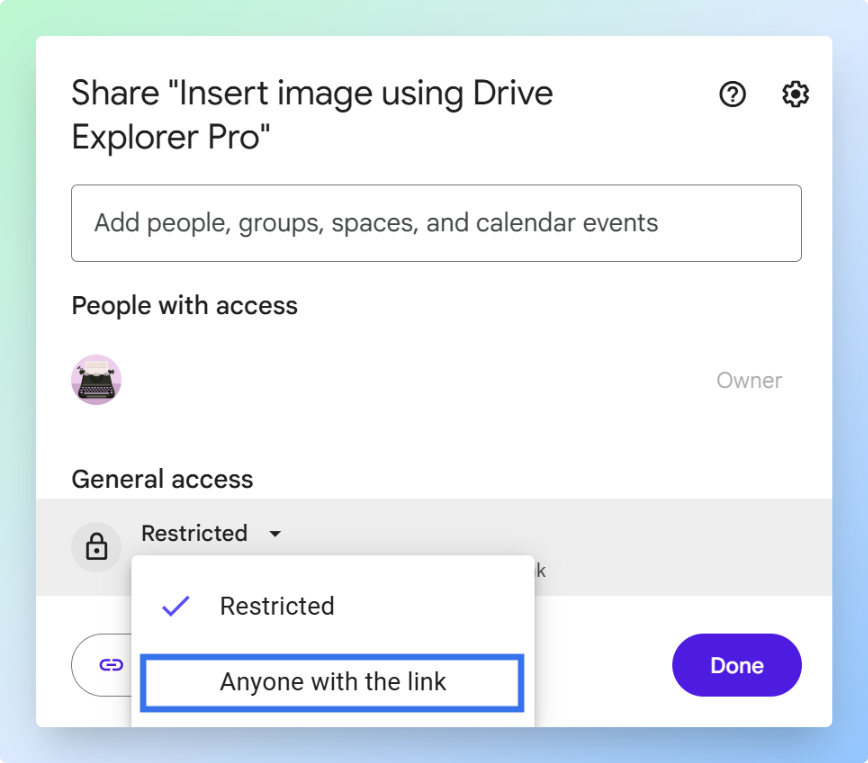
Note: If Anyone with the link does not appear, your school or work account have public sharing disabled. In that case, share the file with specific people by email or contact your Google Workspace admin.
For more on how link sharing works, see how to create a Google Drive link to share files or the official Share files from Google Drive guide.
Now your file has the sharing access you selected. Next, use the method that matches your file type.
If your photos are still on your device, upload them to Google Drive first. See how to upload photos to Google Drive and share a link for the full upload walkthrough.
Creating a Direct Download Link for Uploaded Files
Use this method for files you uploaded to Google Drive from your computer, such as:
- PDF files
- ZIP files
- Images
- Videos
- Word documents
- Excel files
- Other non-Google file types
This method does not work for Google Docs, Google Sheets, or Google Slides. Those files need export links, which are covered in the next sections.
Finding the File ID
Every Google Drive file has a File ID. This is the unique part of the share link that identifies the file.
- Right-click the file in Google Drive.
- Click Share.
- Click Copy link.
- Paste the link into a text editor, such as Notepad or TextEdit.
Your link will look like this:
https://drive.google.com/file/d/1A2B3C4D5E6F7G8H9I/view?usp=sharing
https://drive.google.com/file/d/1A2B3C4D5E6F7G8H9I/view?usp=sharing
The File ID is the part between /d/ and /view.
In this example, the File ID is:
1A2B3C4D5E6F7G8H9I
1A2B3C4D5E6F7G8H9I
Copy only the File ID. Do not include the slashes before or after it.
Building the Direct Download Link
Use this direct download URL format:
https://drive.google.com/uc?export=download&id=FILE_ID
https://drive.google.com/uc?export=download&id=FILE_ID
Replace FILE_ID with the File ID you copied.
For example, if your File ID is:
1A2B3C4D5E6F7G8H9I
1A2B3C4D5E6F7G8H9I
Your completed direct download link becomes:
https://drive.google.com/uc?export=download&id=1A2B3C4D5E6F7G8H9I
https://drive.google.com/uc?export=download&id=1A2B3C4D5E6F7G8H9I
Testing the Link
Open a new browser tab, paste the completed URL into the address bar, and press Enter.
If the direct download link works, the file starts downloading instead of opening in a Google Drive preview page.
After the download starts, check your browser's Downloads area or your computer's default Downloads folder to confirm the file was saved.
Note: For large files, roughly 100 MB and above, Google Drive cannot run its virus scan, so the link shows a confirmation page instead of downloading immediately. The recipient clicks Download anyway to continue. This is expected behavior, not a broken link.
Creating Direct Download Links for Google Docs and Google Slides
Google Docs and Google Slides are Google Workspace files. They do not download as normal uploaded files. You need to export them into a file format, such as PDF, DOCX, or PPTX.
Use this method when you want the recipient to download a Google Doc or Google Slides presentation directly.
Creating a Direct Download Link for a Google Doc
- Open the Google Doc.
- Click inside the browser address bar.
- Copy the File ID from the URL.
A Google Docs URL usually looks like this:
https://docs.google.com/document/d/1A2B3C4D5E6F7G8H9I/edit
https://docs.google.com/document/d/1A2B3C4D5E6F7G8H9I/edit
The File ID is the part between /d/ and /edit.
In this example, the File ID is:
1A2B3C4D5E6F7G8H9I
1A2B3C4D5E6F7G8H9I
To download the Google Doc as a PDF, use this format:
https://docs.google.com/document/d/FILE_ID/export?format=pdf
https://docs.google.com/document/d/FILE_ID/export?format=pdf
Example:
https://docs.google.com/document/d/1A2B3C4D5E6F7G8H9I/export?format=pdf
https://docs.google.com/document/d/1A2B3C4D5E6F7G8H9I/export?format=pdf
To download the Google Doc as a Microsoft Word file, use this format:
https://docs.google.com/document/d/FILE_ID/export?format=docx
https://docs.google.com/document/d/FILE_ID/export?format=docx
Example:
https://docs.google.com/document/d/1A2B3C4D5E6F7G8H9I/export?format=docx
https://docs.google.com/document/d/1A2B3C4D5E6F7G8H9I/export?format=docx
Use PDF when the recipient only needs to read the file. Use DOCX when the recipient needs to open or edit the file in Microsoft Word.
Creating a Direct Download Link for Google Slides
- Open the Google Slides file.
- Click inside the browser address bar.
- Copy the File ID from the URL.
A Google Slides URL usually looks like this:
https://docs.google.com/presentation/d/1A2B3C4D5E6F7G8H9I/edit
https://docs.google.com/presentation/d/1A2B3C4D5E6F7G8H9I/edit
The File ID is the part between /d/ and /edit.
To download the presentation as a PDF, use this format:
https://docs.google.com/presentation/d/FILE_ID/export?format=pdf
https://docs.google.com/presentation/d/FILE_ID/export?format=pdf
Example:
https://docs.google.com/presentation/d/1A2B3C4D5E6F7G8H9I/export?format=pdf
https://docs.google.com/presentation/d/1A2B3C4D5E6F7G8H9I/export?format=pdf
To download the presentation as a Microsoft PowerPoint file, use this format:
https://docs.google.com/presentation/d/FILE_ID/export?format=pptx
https://docs.google.com/presentation/d/FILE_ID/export?format=pptx
Example:
https://docs.google.com/presentation/d/1A2B3C4D5E6F7G8H9I/export?format=pptx
https://docs.google.com/presentation/d/1A2B3C4D5E6F7G8H9I/export?format=pptx
Use PDF when you want the layout to stay fixed. Use PPTX when the recipient needs to edit the slides in Microsoft PowerPoint.
Creating a Direct Download Link for Google Sheets
Google Sheets also uses an export link. You can export a spreadsheet as an Excel file or a CSV file.
Use this method when you want the Google Sheet to download directly, instead of opening in Google Sheets first.
Exporting Google Sheets as Excel
Use Excel format when you want to keep the full spreadsheet structure, including multiple sheet tabs.
- Open the Google Sheet.
- Click inside the browser address bar.
- Copy the File ID from the URL.
A Google Sheets URL usually looks like this:
https://docs.google.com/spreadsheets/d/1A2B3C4D5E6F7G8H9I/edit
https://docs.google.com/spreadsheets/d/1A2B3C4D5E6F7G8H9I/edit
The File ID is the part between /d/ and /edit.
In this example, the File ID is:
1A2B3C4D5E6F7G8H9I
1A2B3C4D5E6F7G8H9I
To download the Google Sheet as an Excel file, use this format:
https://docs.google.com/spreadsheets/d/FILE_ID/export?format=xlsx
https://docs.google.com/spreadsheets/d/FILE_ID/export?format=xlsx
Example:
https://docs.google.com/spreadsheets/d/1A2B3C4D5E6F7G8H9I/export?format=xlsx
https://docs.google.com/spreadsheets/d/1A2B3C4D5E6F7G8H9I/export?format=xlsx
Your browser downloads an .xlsx file. Open it in Microsoft Excel or Google Sheets to check the file before sharing the link.
Exporting Google Sheets as CSV
Use CSV format only when you need simple spreadsheet data as plain text values.
CSV is best for simple spreadsheets with one sheet tab. If your spreadsheet has multiple tabs, use XLSX instead so the full workbook stays together.
To download a Google Sheet as CSV, use this format:
https://docs.google.com/spreadsheets/d/FILE_ID/export?format=csv
https://docs.google.com/spreadsheets/d/FILE_ID/export?format=csv
Example:
https://docs.google.com/spreadsheets/d/1A2B3C4D5E6F7G8H9I/export?format=csv
https://docs.google.com/spreadsheets/d/1A2B3C4D5E6F7G8H9I/export?format=csv
Your browser downloads a .csv file.
Note: Use XLSX if you need to preserve the spreadsheet structure.
Quick Export Format Reference
Use this table to check the export link format for each Google Drive file type.
| Google file type | Download format | Export link ending |
|---|---|---|
| Google Docs | /export?format=pdf | |
| Google Docs | Microsoft Word | /export?format=docx |
| Google Slides | /export?format=pdf | |
| Google Slides | Microsoft PowerPoint | /export?format=pptx |
| Google Sheets | Microsoft Excel | /export?format=xlsx |
| Google Sheets | CSV | /export?format=csv |
These methods work well when you need one direct download link at a time. If you need links for multiple files, use next section.
Generating Direct Download Links for Multiple Google Drive Files with Drive Explorer Pro
You can use Drive Explorer Pro when you need direct download links for many Google Drive files at once.
Instead of copying file IDs and editing URLs manually, Drive Explorer Pro lists your selected files in Google Sheets with file names, standard Google Drive links, direct download links, file sizes, and file types.
This method works well for:
- Course PDFs
- Client deliverables
- Image folders
- Shared asset libraries
- Team file trackers
- Large batches of downloadable files
Why use Drive Explorer Pro
- Generate direct download links for multiple files in one workflow.
- Add file names, standard file links, direct download links, and file sizes to Google Sheets.
- Set sharing access before listing the files.
- Keep all download links organized in one spreadsheet.
Install Drive Explorer Pro from the Google Workspace Marketplace:
Launching Drive Explorer Pro
- Open Google Sheets.
- Go to Extensions > Drive Explorer Pro > Open Drive Explorer Pro.
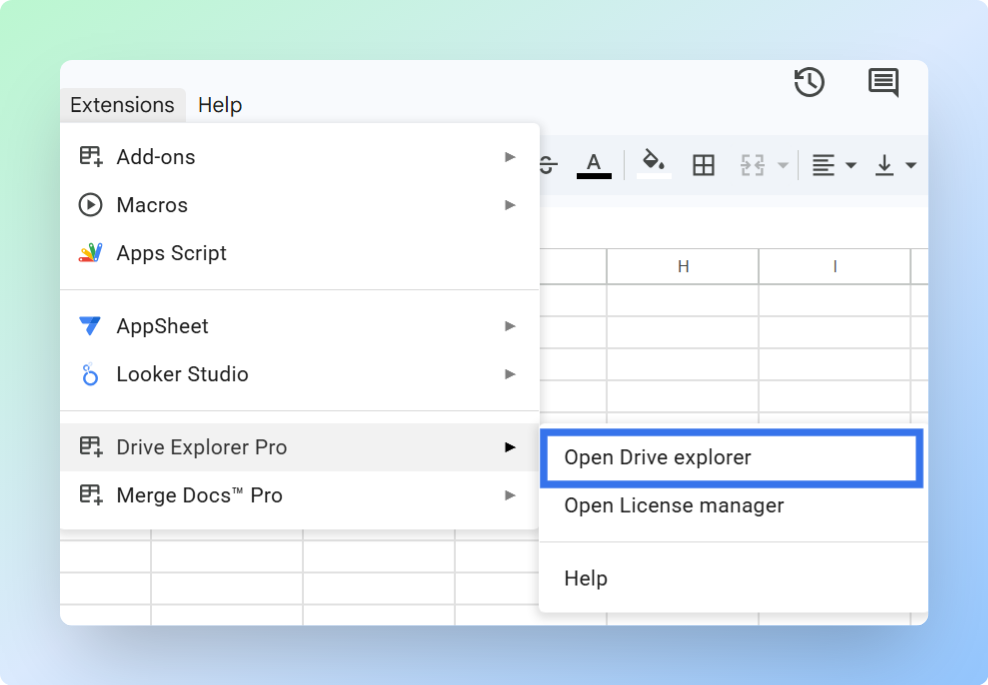
The Drive Explorer Pro sidebar opens on the right side of your spreadsheet.
Configuring File Attributes to Log in Your Sheet
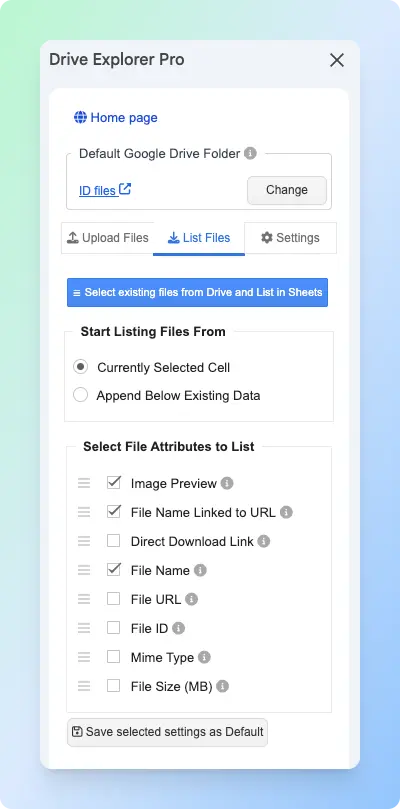
Use the List Files tab to choose which file details Drive Explorer Pro should add to Google Sheets after listing.
-
Click the List Files tab in the sidebar.
-
Under Start listing file from, choose one of the following:
- Currently selected cell - logs data starting from wherever your cursor is in the sheet.
- Append below existing data - adds new rows below any content already in the sheet.
-
Under Select File Attributes to list, choose the details you want to log.
| Attribute | What It Logs | Best For |
|---|---|---|
| Direct Download Link | A link that downloads the file immediately | Sharing files that recipients need to save |
| File Name Linked to URL | Clickable file name that opens the file in Google Drive | Quick access without downloading |
| File URL | Standard Google Drive link | Copying and sharing the file link |
| File Name | Plain text file name, no link | Reference or filtering |
| File ID | Unique Google Drive identifier | Advanced workflows or API use |
| File Size (MB) | File size in megabytes | Tracking large files |
| Mime Type | File format, such as application/pdf | Filtering by file type |
For most direct download workflows, select Direct Download Link, File ID, File Name Linked to URL, and File Size (MB).
- Click Save Selected Settings as Default.
Setting Sharing Permissions Before Listing Files
Set file access before listing the files so the direct download links work for your recipients.
-
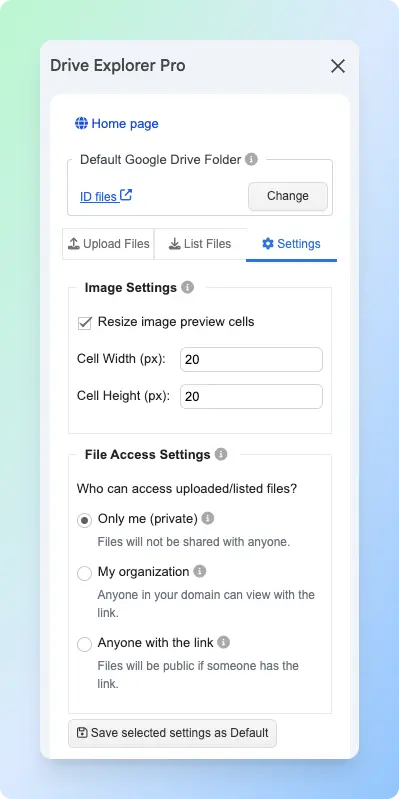
Click the Settings tab in the sidebar.
-
Under File Access Settings, choose the access level you need.
| File Access Setting | What It Means | When to Use It |
|---|---|---|
| Only me (private) | Only you can open the files. | Use this when you are not ready to share the files. |
| My organization | People in your Google Workspace organization can open the files with the link. | Use this for internal company or school files. |
| Anyone with the link | Anyone with the link can open the files. | Use this for external sharing. |
For public download links, select Anyone with the link so recipients can download files without requesting access.
- Click Save Selected Settings as Default.
Drive Explorer Pro applies this setting when it lists the files. Each file gets a shareable download link automatically.
Note: This setting applies to the files you select and list. It does not change permissions on files already in your Drive that you do not select.
Selecting Files and Generating Direct Download Links
After configuring the file details and access settings, select the files from Google Drive you want to list.
- Go back to the List Files tab.
- Click Select existing files from Drive and List in Sheets.
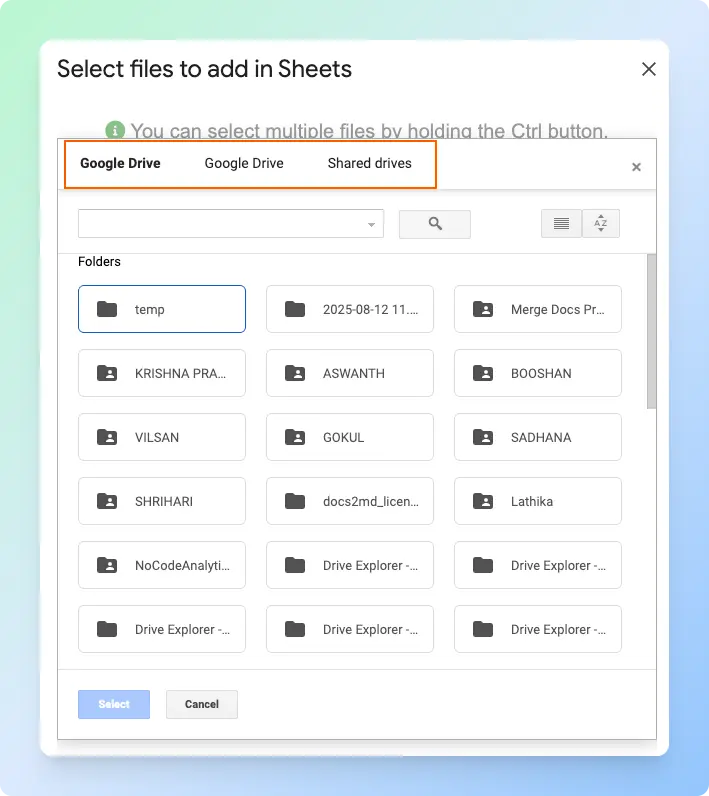
- Select the files you want to include.
- Click Select.
- Wait while Drive Explorer Pro adds the selected files to Google Sheets.
Do not close the sidebar while the files are being listed. Closing it early can stop the process and leave rows incomplete.
Result
Drive Explorer Pro adds one row per file in Google Sheets. Based on the attributes you selected, each row can include the file name, standard Google Drive link, direct download link, and file size.
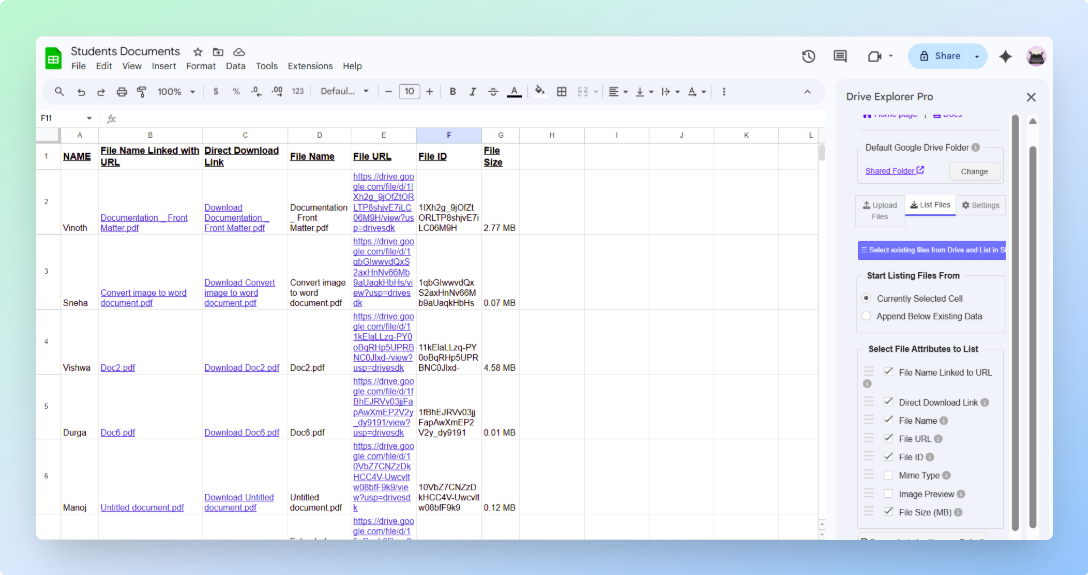
Click a link in the Direct Download Link column to test it. The file should download instead of opening in a Google Drive preview page.
If the link shows Request access: Go back to the Settings tab, confirm File Access Settings is set correctly, and list the files again.
Drive Explorer Pro will ask for Google Drive and Google Sheets permissions during installation. These permissions allow the add-on to access the files you select, apply the sharing settings you choose, and write file details into your spreadsheet.
If you want to display the photos inside the sheet cells instead of just linking them, see how to insert images in Google Sheets from Google Drive. This keeps each photo preview tied to its row when you sort or filter the sheet.
To turn an entire Drive folder into a structured file inventory, including an Apps Script option, see how to list files from Google Drive into Google Sheets.
Related Free Tools
Direct download links work well for PDFs your team or customers need on demand:
- Quotation Generator — quote PDFs with one-click download links
- Invoice Generator — invoice PDFs for client download pages
- Browse all free business tools
Conclusion
A direct download link lets someone download a Google Drive file without opening the preview page first.
- Use the standard method for PDFs, ZIP files, images, videos, and other uploaded files.
- Use export links for Google Docs, Google Slides, and Google Sheets.
- Use Drive Explorer Pro to create direct download links for many files and organize them in Google Sheets.
Before sharing, check the file access settings. The link works only for people who have permission to open the file. For standard PDF sharing without a forced download, see how to share a PDF as a link in Google Drive.