How to Share a PDF as a Link (Google Drive)
A PDF saved on your computer does not have a shareable link yet. To share it as a link, upload the PDF to Google Drive first.
After the upload, Google Drive creates a link for the PDF. You can send that link by email, chat, form, or spreadsheet instead of attaching the PDF file. Before you send it, check the file access so others can open it.
In this guide, you will learn two ways to share a PDF as a link and when to use each method.
Table of Contents
Video Tutorial
Prerequisites
- A Google account
- A PDF file on your computer or already stored in Google Drive
If your document is still an image, such as a scanned page or a photo of a form, see how to convert an image to PDF in Google Drive first, then come back to share it as a link.
Sharing a Single PDF as a Link from Google Drive Web App
Use this method when you need to share a single PDF link from your computer. You will get the shareable link from Google Drive and, if the PDF is not yet uploaded, add it first.
Getting the Shareable Link
You can copy a PDF link from Google Drive, but others can open it only if the file access is set correctly. Uploaded files are Restricted by default. If you send a restricted link, the other person may see Request access instead of the PDF.
-
Find your PDF in the Google Drive file list.
-
Right-click the PDF and select Share.
-
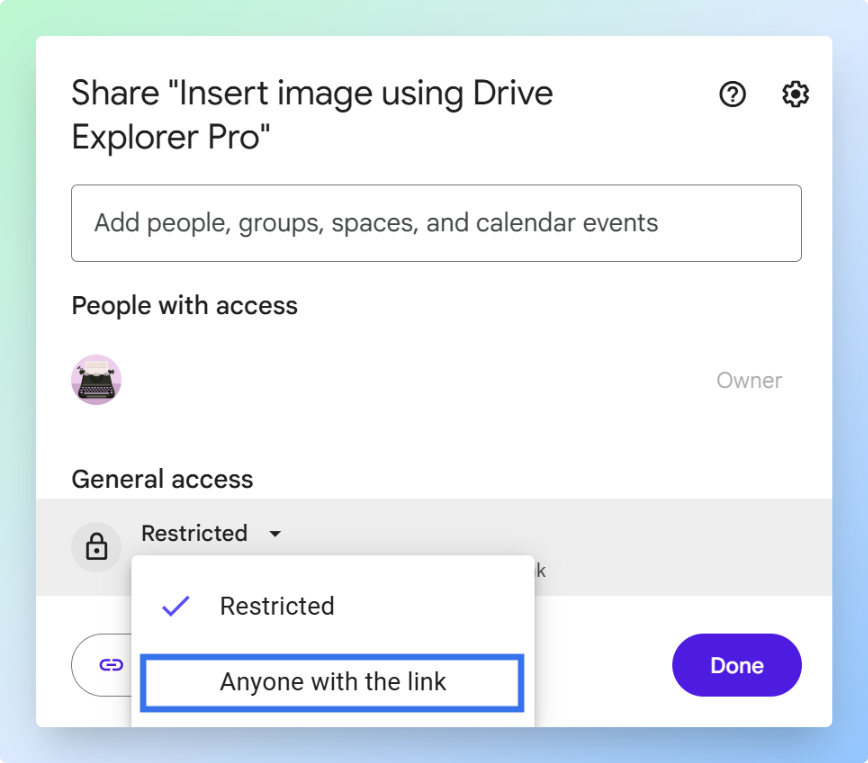
In the sharing dialog, find General access.
-
Click the Restricted dropdown and choose the access setting you need.
Access setting Who can open the PDF Best for Restricted Only people you add by email Private files or controlled sharing Anyone with the link Anyone who has the link Sharing with clients, customers, students, or external contacts My organization (only visible on work or school Google accounts) People in your Google Workspace organization Internal team or school sharing -
Set the permission role using the dropdown next to the access setting.
Permission role What people can do When to use Viewer Open and read the PDF Best for most PDF sharing Commenter View the PDF and add comments Use when you want feedback Editor Change the file and its sharing settings Avoid for normal PDF sharing -
Click Copy link.
-
Click Done.
The PDF link is now copied to your clipboard. Paste it into any text field. Google Drive PDF links always start with https://drive.google.com/file/d/. You now have a shareable PDF link you can paste into an email, message, form, spreadsheet, or document.
For a full overview of access settings and permission roles, see Share files from Google Drive.
Tip: Google Drive's sharing dialog gives a view link, which opens the PDF in the browser. If you want the PDF to download directly when clicked, see how to create a direct download link in Google Drive.
Uploading Your PDF to Google Drive
If your PDF is still on your computer, upload it to Google Drive first. Google Drive then creates a link you can send by email, chat, form, or spreadsheet.
-
Open Google Drive in your browser.
-
Click + New in the top-left corner.
-
Select File upload.

-
Navigate to the folder where your PDF is saved. Select the PDF file.
-
Click Open.
-
Wait for the upload to finish. Check the upload status box at the bottom-right. When it says the upload is complete, your PDF is ready.
For more details on uploading files, see Upload files and folders to Google Drive.
Once uploaded, follow the steps in Getting the Shareable Link above.
The web method works well for one PDF link. For multiple PDFs, repeating the upload, access, copy, and paste steps becomes slow.
If you need links for multiple PDFs, use Drive Explorer Pro in the next section to create and log PDF links in Google Sheets.
Sharing Multiple PDF Links Using Drive Explorer Pro
Drive Explorer Pro is a Google Workspace add-on that works inside Google Sheets.
Use it when you need to create links for multiple PDFs instead of copying each link one by one. Drive Explorer Pro adds each PDF's shareable link, direct download link, file name, and other file details to your sheet in one workflow.
Why use Drive Explorer Pro
- Add links for multiple PDFs to Google Sheets without copying and pasting each link manually.
- Get a shareable link and direct download link for each PDF automatically.
- Save file names, sizes, and types in the same sheet for easy reference.
Install Drive Explorer Pro from the Google Workspace Marketplace:
Launching Drive Explorer Pro
Open Drive Explorer Pro from inside Google Sheets. You can use a new sheet or an existing one.
-
Open Google Sheets.
-
Click Extensions > Drive Explorer Pro > Open Drive Explorer Pro.
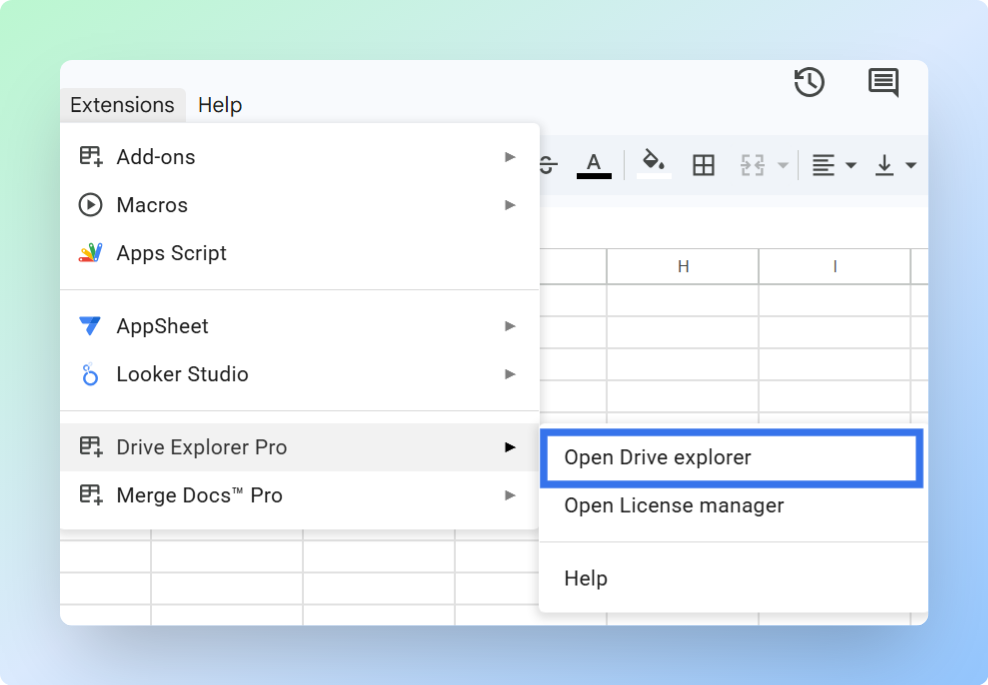
The Drive Explorer Pro sidebar opens on the right side of your sheet.
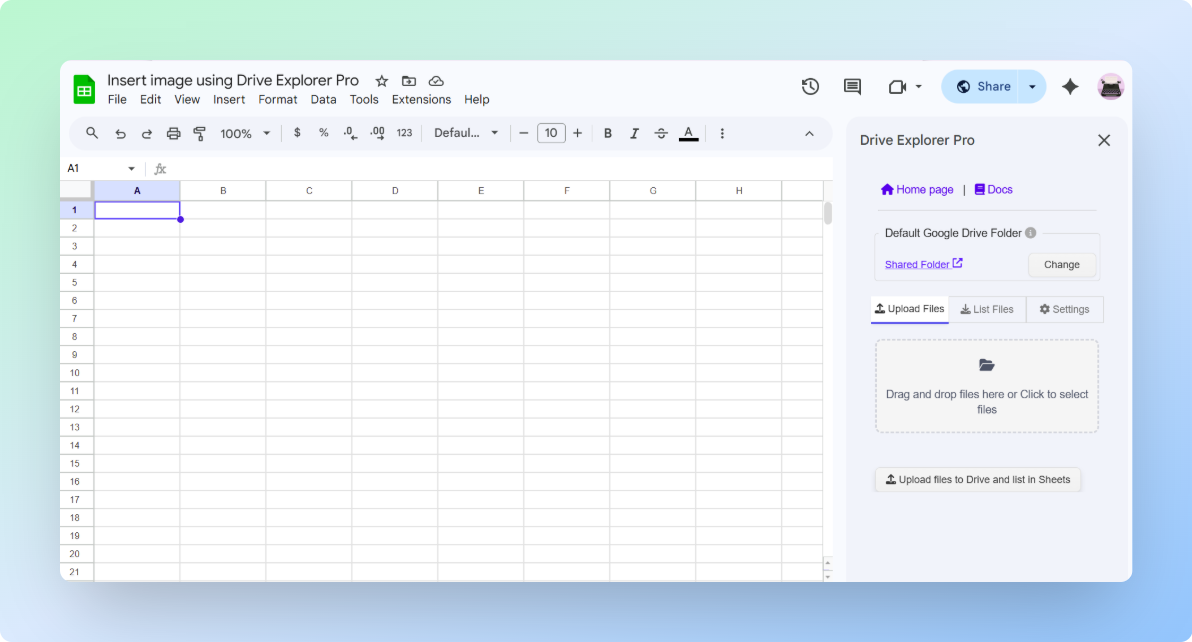
Note: If Drive Explorer Pro does not appear in the Extensions menu, refresh the Google Sheets page.
One-time setup: Complete the steps below once. Drive Explorer Pro saves your settings for future sessions.
Setting File Access and Column Details
Set the file access level and choose which PDF details Drive Explorer Pro should write into your sheet.
Setting the File Access
-
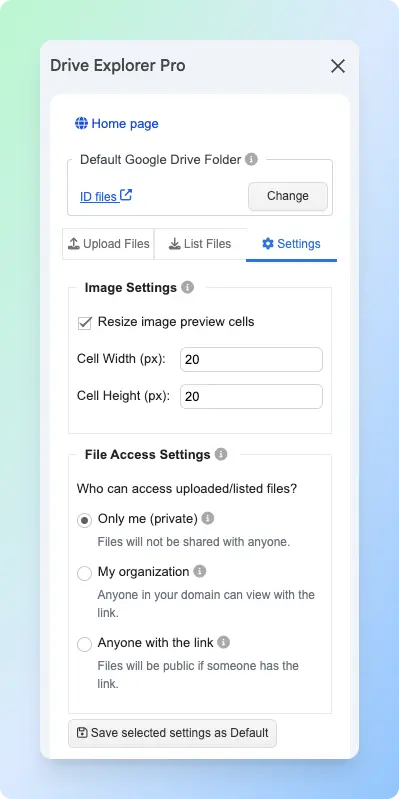
In the Drive Explorer Pro sidebar, go to the Settings tab.
-
Under File Access Settings, choose the access level you need.
File access setting What it means When to use Only me Only you can open the PDFs Use for private files or drafts My organization People in your Google Workspace organization can open the PDFs Use for internal team sharing Anyone with the link Anyone with the link can open the PDFs Use when sharing PDFs with clients, customers, or external contacts -
Select Anyone with the link if you want people to open the PDFs without requesting access.
-
Click Save Selected Settings as Default.
Important: This setting applies to the files you select in this session. It does not change permissions on files already in your Google Drive that you do not select.
Choosing Column Details
-
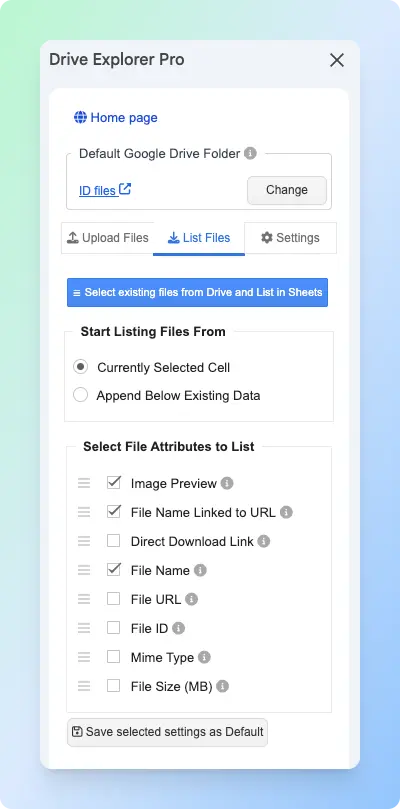
Go to the List Files tab.
-
Under Start listing file from, choose where the PDF details should appear.
Option What it does When to use Currently selected cell Starts adding PDF details from the cell you selected Use when your sheet is empty or you want to choose the starting point Append below existing data Adds new PDF rows below existing rows Use when adding more PDFs to an existing sheet -
Under Select File Attributes to list, select the PDF details you want to add.
Attribute What it adds to Google Sheets Why it helps File Name Linked to URL A clickable PDF file name Opens the PDF from the file name itself File URL The regular Google Drive view link Use when people need to open the PDF in their browser Direct Download Link A link that downloads the PDF directly Use when people need to download the PDF instead of previewing it File Size (MB) The PDF file size Helps you identify large files Mime Type The file type, such as application/pdfHelps confirm the listed files are PDFs File ID The unique Google Drive file ID Useful for advanced tracking or automation For most PDF sharing workflows, select File Name Linked to URL, File URL, Direct Download Link, File Size (MB), and Mime Type. Drag the handles on the left to arrange the attributes in the order you want them to appear as columns.
-
Click Save Selected Settings as Default.
Listing Your PDFs and Getting the Links
Select the PDFs already stored in Google Drive, then let Drive Explorer Pro write their links and file details into your sheet.
-
Click the List Files tab.
-
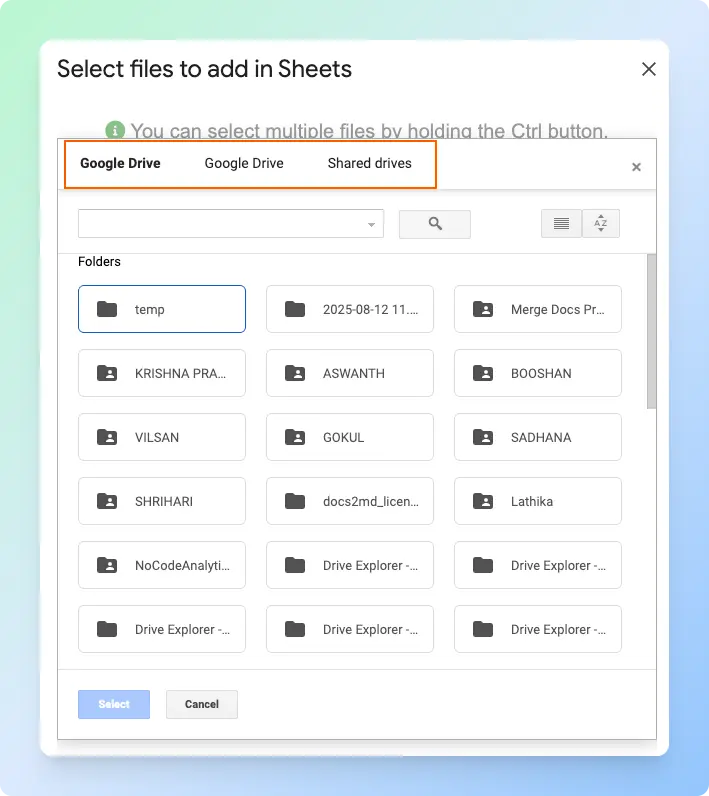
Click Select existing files from Drive and List in Sheets.
-
Navigate to the folder where your PDFs are stored.
-
Select one or more PDF files. Hold Ctrl on Windows or Cmd on Mac to select multiple PDFs.
-
Click Select.
Note: Do not close the Drive Explorer Pro sidebar while it is listing files. Closing it early can stop the process and leave rows incomplete.
Result: Drive Explorer Pro writes the selected details for each PDF into your sheet. Each row shows the PDF name, shareable link, and direct download link based on the attributes you selected.
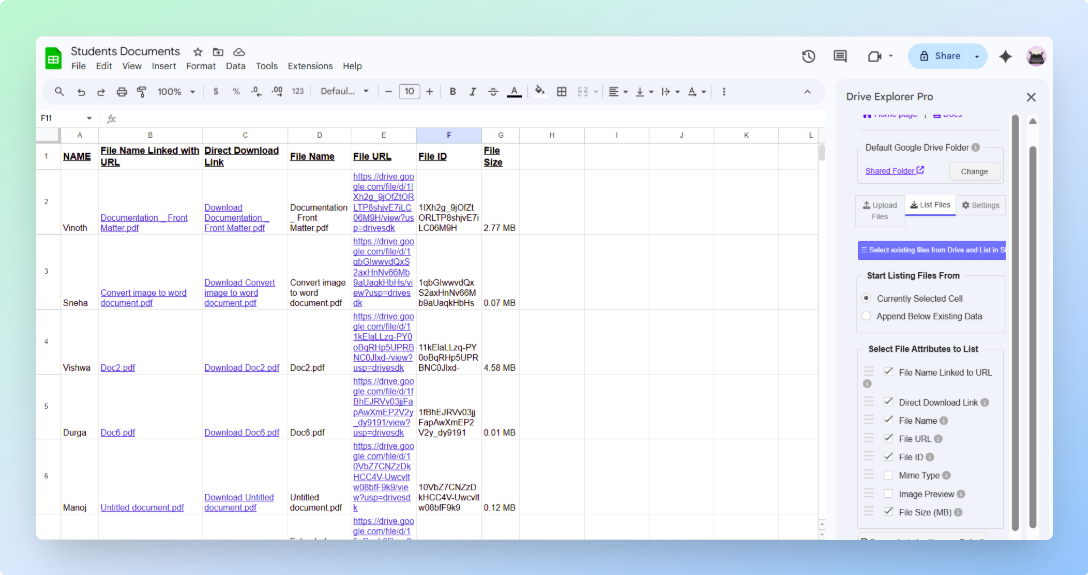
You now have a log of every PDF link. Copy links from the sheet, paste them into emails, or share the sheet with your team.
Important: The Google Sheet and the PDF files have separate access settings. Setting PDF links to Anyone with the link does not automatically share the Google Sheet. In Google Sheets, click Share in the top-right corner, change General access to Anyone with the link, set the role to Viewer, and click Copy link. Send that link so recipients can open the sheet and access all the PDF links in one place.
If you want to format these links inside cells, see how to add a PDF link in Google Sheets.
Related Free Tools
Creating the PDFs first? Generate business documents as PDF, upload to Drive, then share or link them using the methods above:
- Invoice Generator — professional invoices ready to share as PDF links
- Quotation Generator — send quotes clients can download directly
- Salary Slip Generator — payslip PDFs for payroll folders
- Browse all free business tools
Conclusion
A PDF link works only when the access setting is correct. If the PDF is Restricted, people see Request access instead of the file.
- Use Google Drive when you need to share one PDF from your computer.
- Use Drive Explorer Pro when you need links for multiple PDFs, direct download links, or a saved PDF link log in Google Sheets.
Before you send the link or share the sheet, check access once so recipients can open the PDF without requesting permission.