How to Create a Google Drive Link to Share Files
Google Drive lets you create a shareable link for any file or folder so other people can open it without sending email attachments.
The important part is that the browser address bar is not the shareable Google Drive link. You must open Share, choose the correct access setting, and then copy the link Google generates.
By default, files in Google Drive are private. If you copy the browser URL without checking sharing settings, the recipient may see a Request access screen instead of the file.
In this guide, you will learn how to create a Google Drive link to share files using three methods, along with guidance on when to use each one.
Table of Contents
Prerequisites
- A Google account
- A file or folder already stored in Google Drive
- Access to the file you want to share
If the file is still on your computer, see how to upload files to Google Drive and share a link.
Understanding Google Drive Sharing
Before you create a Google Drive link, choose the right sharing level. This setting decides who can open the link you share.
Use this section before you copy the link. Choosing the wrong access setting is the most common reason a Google Drive link does not work for other people.
| Sharing level | Who can open the file | When to use it |
|---|---|---|
| Restricted | Only people you add by email | Private files or sensitive documents |
| My organization | Anyone in your Google Workspace organization | Internal work or school files |
| Anyone with the link | Anyone who has the link | Sharing with clients, students, friends, or people outside your organization |
For more details on sharing access settings, see Share files from Google Drive.
Note: My organization appears only for work or school Google accounts. Personal Gmail accounts do not show this option.
For people outside your work or school, choose Anyone with the link so they can open the file without switching accounts.
If other people also need to upload files to the same location, see how to upload files to a shared Google Drive folder.
Once you know which access level fits your situation, follow the steps below to create the link on web, mobile, or in bulk using Google Sheets.
Creating a Google Drive Link on Web App
You can create a shareable Google Drive link from any desktop browser in under a minute. Use this method when you are on a laptop or desktop and need to share one or two files.
Opening the Sharing Dialog
Open the sharing dialog to control who can access the file. Every sharing change you make in Google Drive on the web starts here.
- Go to Google Drive.
- Find the file you want to share.
- Right-click the file.
- Select Share.
The Share with people and groups dialog opens. This is where you control who can open the file.
Changing Access to Anyone with the Link
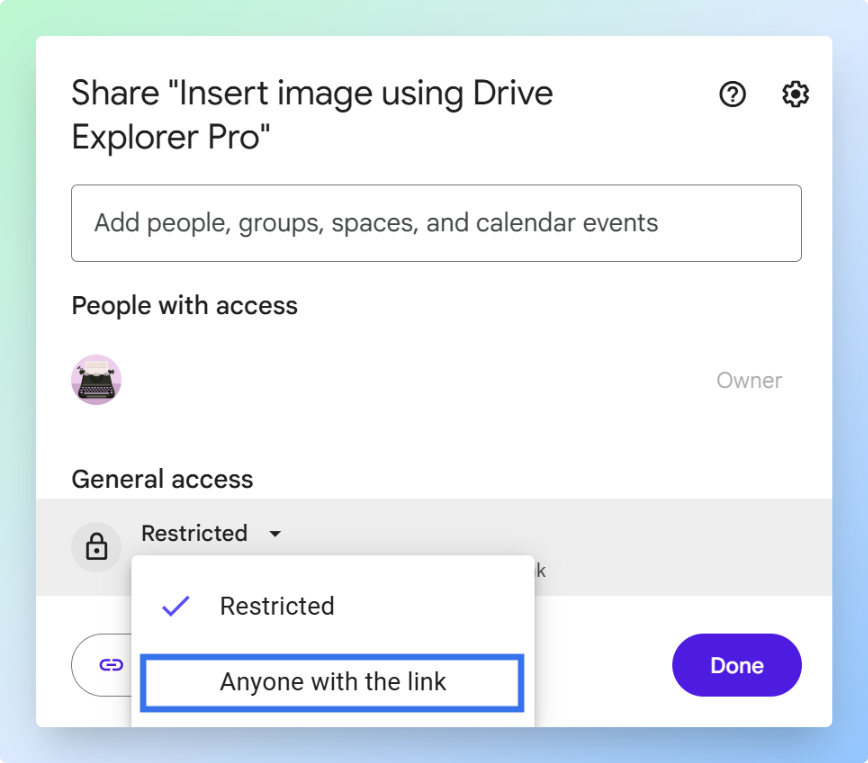
Change the access setting so anyone with the link can open the file. By default, Google Drive sets every file to Restricted, so only people you add by email can open it.
-
In the sharing dialog, find the General access section.
-
Click the dropdown that shows Restricted.
-
Select Anyone with the link.
-
To the right of Anyone with the link, click the permission dropdown.
-
Choose the permission level you want.

For most file-sharing situations, choose Viewer. This lets people open the file without giving them permission to change it.
- Click Copy link.
- Click Done.
The link is now copied to your clipboard and ready to share. Paste it into an email, chat message, document, form, or any app you use.
If you want recipients to download the file directly instead of opening a preview, see how to create a direct download link in Google Drive.
Tip: Test the link before sending it. Open a private or incognito browser window, paste the link, and check whether the file opens. If you see a Request access screen, go back to Share and set General access to Anyone with the link.
If you are on a phone or tablet, the steps are slightly different. The next section covers the Google Drive mobile app on Android, iPhone, and iPad.
Creating a Google Drive Link on Mobile App
You can create a shareable Google Drive link directly from the Google Drive app on your phone or tablet.
Use this method when you are on Android, iPhone, or iPad and need to share a file without opening a browser.
-
Open the Google Drive app.
-
Find the file you want to share.
-
Tap the three-dot icon next to the file.
-
Tap Manage access.

The steps are similar on iPhone and iPad, but the screen may look slightly different.
-
Under General access, select Anyone with the link.
-
Tap the permission dropdown and choose Viewer, Commenter, or Editor.
-
Tap the Copy link icon in the top-right corner.
For more details on sharing files from the Google Drive mobile app, see Share files from Google Drive.
The link is copied to your clipboard. Paste it into a message, email, or any app where you want to send it.
That works well for one or two files. When you need links for many existing Google Drive files, repeatedly opening each file, updating access, and copying links becomes time-consuming.
The next section shows how to use Drive Explorer Pro in Google Sheets to create and organize multiple shareable links in one workflow.
Creating Multiple Google Drive Links Using Drive Explorer Pro
Drive Explorer Pro is a Google Sheets add-on that lists Google Drive files in a spreadsheet with file names, shareable links, direct download links, file sizes, and file types.
Use this method when you need links for multiple files. Instead of opening each file and copying links one by one, you can list all selected files in Google Sheets in one workflow.
Why use Drive Explorer Pro
- Link multiple Google Drive files at once without copying each URL manually.
- Add file names, Drive links, direct download links, and file sizes to your sheet automatically.
- Set file access before listing, so every link works for recipients the moment it is added.
Install Drive Explorer Pro from the Google Workspace Marketplace:
Launching Drive Explorer Pro
Launch Drive Explorer Pro from within Google Sheets to open the sidebar. The sidebar stays open while you complete the rest of the setup.
-
Open Google Sheets.
-
Click Extensions > Drive Explorer Pro > Open Drive Explorer Pro.
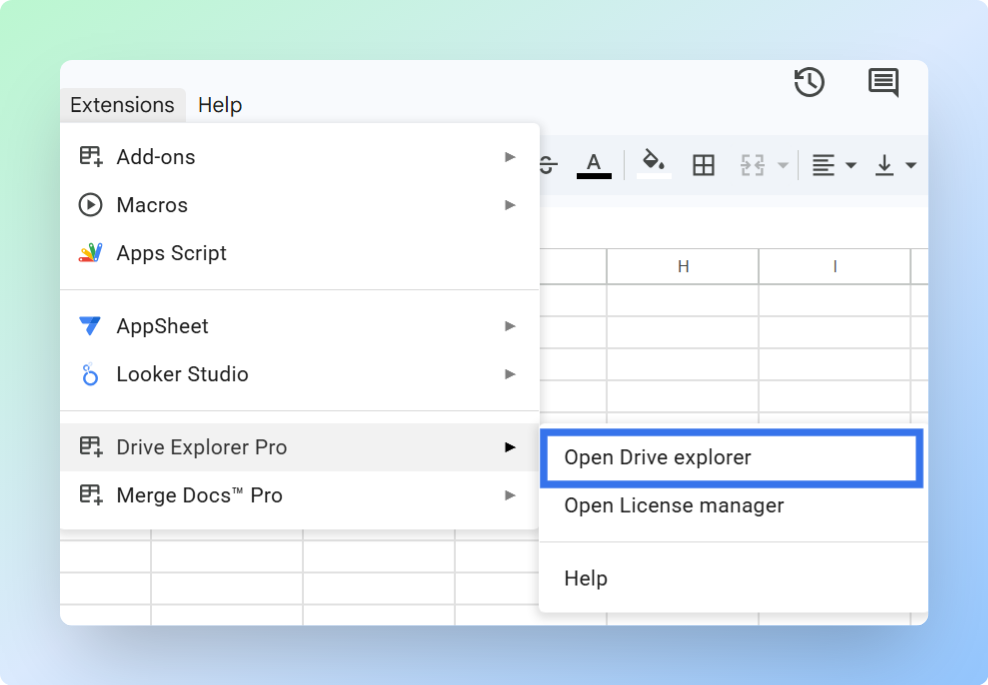
The Drive Explorer Pro sidebar opens on the right side of your sheet.
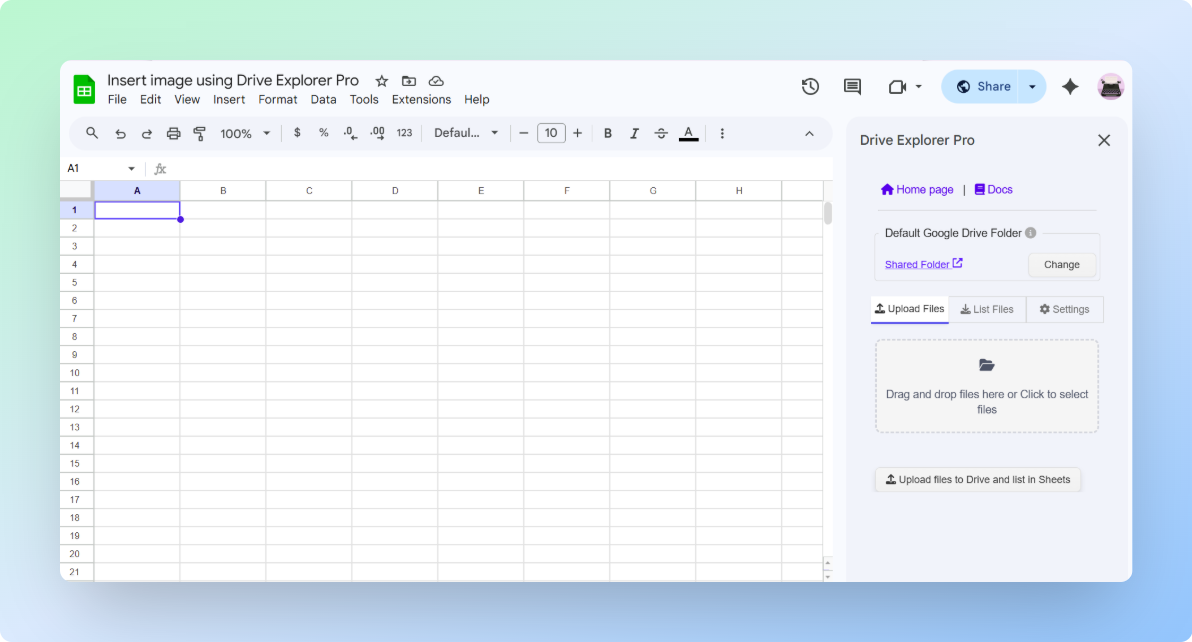
One-time setup: Complete the steps below once. Drive Explorer Pro saves your settings for future tasks.
Setting File Access
Set who can open the file links before listing any files. This prevents recipients from seeing a Request access page when they click a link in your sheet.
-
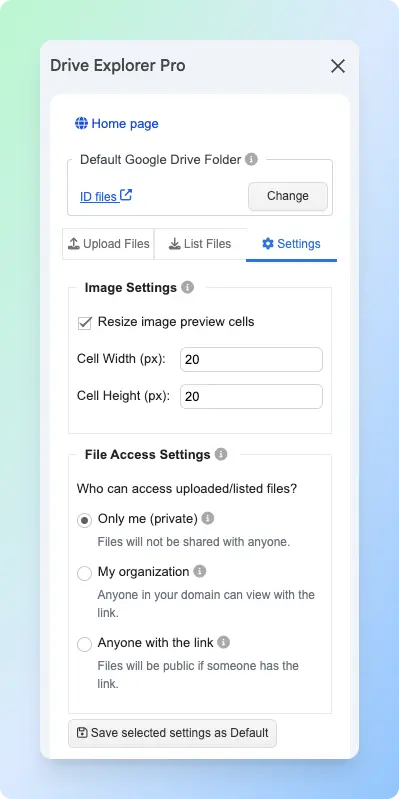
Click the Settings tab in the sidebar.
-
Under File Access Settings, choose the access level you need.
| Setting | Who can open the file | When to use it |
|---|---|---|
| Only me | Only you | Use when the files are not ready to share |
| My organization | People in your Google Workspace organization | Use for internal team files |
| Anyone with the link | Anyone with the link | Use for external sharing with clients or recipients |
- Click Save selected settings as Default.
Drive Explorer Pro applies this setting to every file you list. Each file gets a working link automatically.
Important: This setting applies to the files you select in this session. It does not change permissions on files already in your Google Drive that you do not select.
With access set, the next step is choosing which file details Drive Explorer Pro adds to your sheet.
Choosing File Details to Log
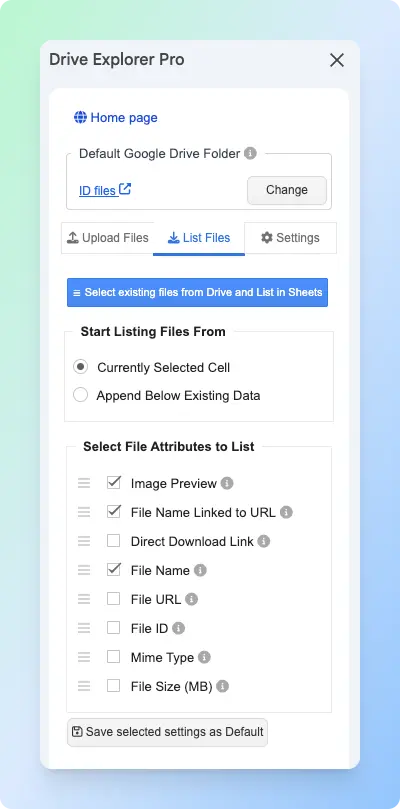
Choose which file details Drive Explorer Pro adds to your sheet. For most sharing tasks, select the file name, shareable link, and file size.
The order you set here becomes the column order in your sheet.
-
Click the List Files tab in the sidebar.
-
Under Start listing file from, choose one of the following:
| Option | What it does | When to use it |
|---|---|---|
| Currently selected cell | Adds file rows from the cell you selected | Use when starting a new file list |
| Append below existing data | Adds new rows below existing content | Use when adding more files to an existing list |
- Under Select File Attributes to list, choose the details you want in your sheet.
| Attribute | What it adds | Best for |
|---|---|---|
| File Name Linked to URL | Clickable file name that opens the file in Google Drive | Sharing and identifying files at a glance |
| File URL | Standard Google Drive link | Copying and sharing the file link |
| Direct Download Link | Link that downloads the file immediately | When recipients need to save the file |
| File Name | Plain text file name, no link | Reference or filtering |
| File Size (MB) | File size in megabytes | Tracking large files |
| Mime Type | File format, such as application/pdf or image/jpeg | Filtering by file type |
For most workflows, select File Name Linked to URL, File URL, and File Size (MB).
Drag the attributes to set the column order you want in your sheet.
- Click Save selected settings as Default.
Drive Explorer Pro now knows which columns to create. The next step is selecting the files you want to list.
Listing Existing Google Drive Files
Select your files from Google Drive and Drive Explorer Pro adds one row per file to your sheet. Each row includes the columns you configured in the previous step.
-
Click the List Files tab in the sidebar.
-
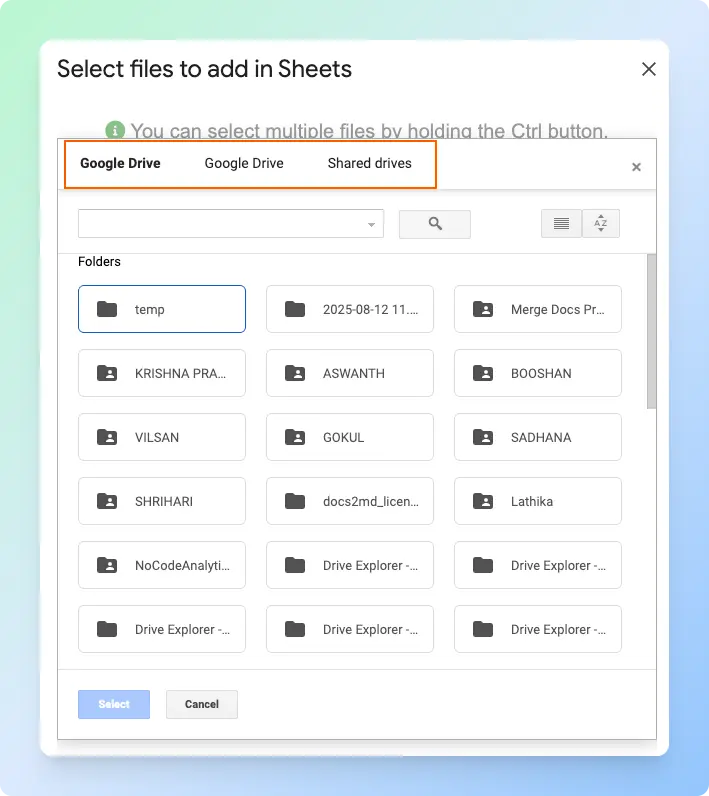
Click Select existing files from Drive and List in Sheets.
-
Browse to the folder that contains your files.
-
Select the files you want to add. Hold Ctrl on Windows or Command on Mac to select multiple files.
-
Click Select.
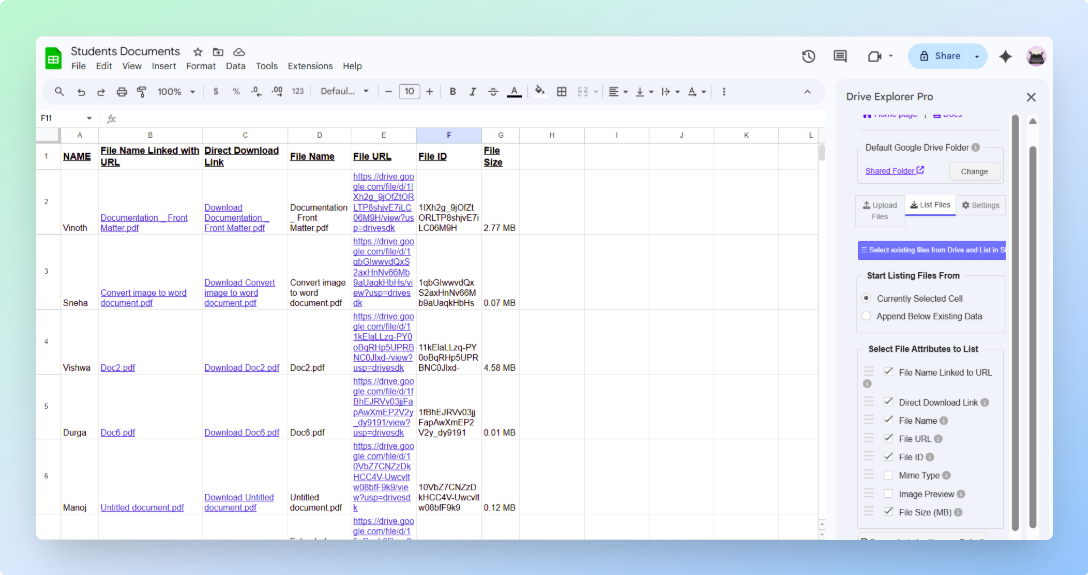
Drive Explorer Pro adds one row per file to your sheet. Each row includes the details based on the attributes you selected.
Note: Do not close the Drive Explorer Pro sidebar while it is listing files. Closing it early can stop the process and leave rows incomplete.
Once the files are listed, share the Google Sheet so recipients can access all the links from one place.
Sharing the Google Sheet
Share the sheet so recipients can open all the file links from one place. You do not need to send each link separately.
Important: The Google Sheet and the files have separate access settings. Setting file links to Anyone with the link does not automatically share the Google Sheet. You must share both for recipients to open the sheet and the files.
- Click Share in the top-right corner of Google Sheets.
- Under General access, change Restricted to Anyone with the link.
- Set the permission to Viewer.
- Click Copy link, then click Done.
Send the sheet link to your team, client, or recipient. They can open the sheet, review the files, and click the links they need.
For more ways to link Google Drive files in Google Sheets, including smart chips and bulk file listing, see how to link a Google Drive file to Google Sheets.
Conclusion
Creating a Google Drive link only takes a few clicks once you understand the sharing settings.
- Use the Google Drive web app when you're on a computer.
- Use the Google Drive mobile app when you're on a phone or tablet.
- Use Drive Explorer Pro when you need to organize links for multiple files in one place.
Before sending any link, verify that General access is set correctly. Otherwise, recipients may see a Request access screen instead of your file.