How to Create a Link for Photos in Google Drive
Google Drive lets you share photos with a link. The photo stays in Google Drive, and the recipient opens it from the link you send.
But the link works only when the photo has the right sharing access. If the photo is still Restricted, the link opens for you. The recipient sees a Request access page instead of the photo.
In this guide, you will learn how to create a link for photos in Google Drive using three methods, along with guidance on when to use each one.
Table of Contents
Video Tutorial
Prerequisites
- A Google account
- Photos already stored in Google Drive
- Access to the photo or folder you want to share
Note: If your photos are still on your device, upload them to Google Drive first. See how to upload photos to Google Drive and share a link, then come back to copy the link.
Creating a Photo Link on Desktop
You can create a shareable photo link from any computer using the Google Drive web app.
Before you copy the link, check General access. This setting controls who can open the photo.
| General access setting | Who can open the photo | When to use it |
|---|---|---|
| Restricted | Only people you invite by email | Use for private photos or sensitive files |
| My organization | People in your work or school Google account | Use for internal team photos |
| Anyone with the link | Anyone who has the link | Use for sharing with clients, friends, or family |
Note: If Anyone with the link does not appear, your Google Workspace admin may have turned off public link sharing. Contact your admin, or add each recipient's email address directly in the sharing box.
Sharing a Single Photo on Desktop
-
Go to Google Drive.
-
Find the photo you want to share.
-
Right-click the photo.
-
Click Share > Share.
-
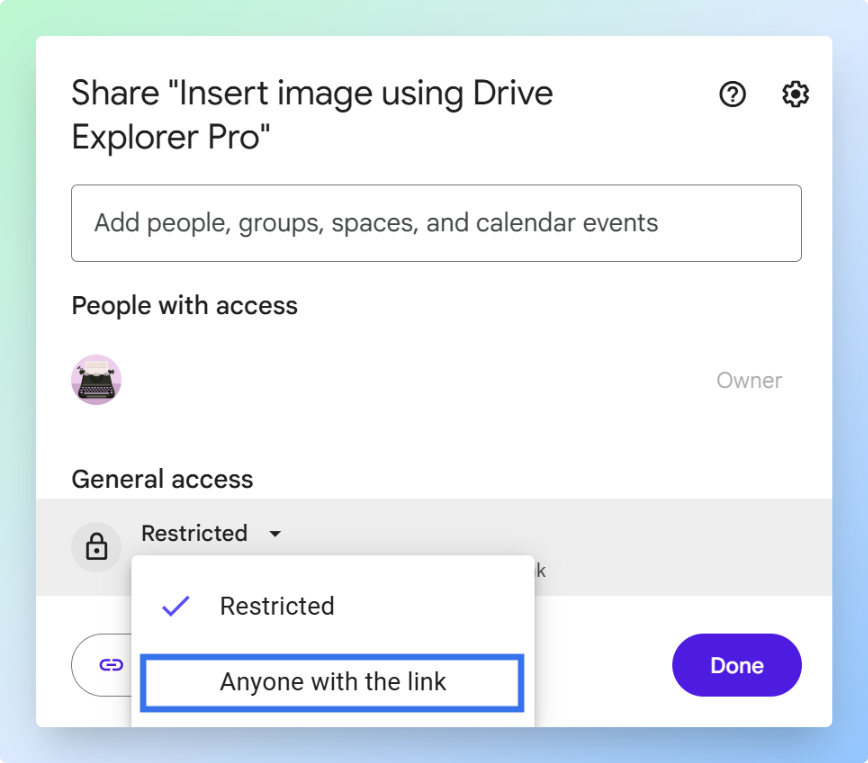
Under General access, click Restricted.
-
Select Anyone with the link.

-
Click the role dropdown and choose a permission level.
Permission What it allows When to use it Viewer Open and download the photo Use for most photo sharing Commenter Leave comments, no editing Use when feedback is needed Editor Upload files and make changes Use only when collaboration is needed -
Click Copy link.
-
Click Done.
Your photo link is now on your clipboard.
Tip: Test the link in a private or incognito browser window before sending. If you see Request access, the photo is still Restricted. Go back to step 5 and change the access.
Sharing a Folder of Photos on Desktop
Use a folder link when you want to share many photos with one link. Any photo you add to the folder later is covered by the same link.
Before you start, put the photos into one Google Drive folder. If you don't have a folder yet, create a new folder and move the photos in.
Important: A folder link shares every file inside it. If the folder has documents or other files you don't want to share, move only the photos into a new folder first.
Note: If a recipient can open the folder but not a specific photo inside it, that photo has its own Restricted setting. Right-click the photo, select Share, and change its access to Anyone with the link.
-
Go to Google Drive.
-
Right-click the folder that contains your photos.
-
Click Share.
-
Under General access, click Restricted.
-
Select Anyone with the link.
-
Confirm the role is set to Viewer.
-
Click Copy link.
-
Click Done.
Send the folder link to your recipient. If you also want collaborators to upload photos into the same folder, see how to upload photos to a shared Google Drive folder.
Note: If the recipient sees Request access, the folder is still Restricted. Open the sharing settings, change General access to Anyone with the link, and copy the link again.
If you want only specific people to open the photos, keep the file Restricted and enter each recipient's email address in the sharing dialog.
The desktop method works well on a computer. If you're on your phone, the next section shows how to do the same from the Google Drive app.
Creating a Photo Link on Mobile
If the photo is still in your phone gallery, upload it first.
Open the Google Drive app, tap the + button, tap Upload, and choose the photo. For a full walkthrough, see how to upload photos on mobile.
Note: On Android, General access appears directly in the share screen. On iPhone or iPad, tap Manage access to reach it.
Sharing a Single Photo on Mobile
-
Open the Google Drive app.
-
Find the photo you want to share.
-
Tap the three dots beside the photo name.
-
Select Manage access.

-
Under General access, tap Restricted.
-
Select Anyone with the link.
-
Confirm the role is set to Viewer.
-
Tap Copy link.
You will see a Link copied message.
Tip: If you're sharing photos you just took, your Camera Roll photos appear under Photos and videos in the Google Drive file picker.
Note: iPhones save photos as HEIC by default. Some devices can't open HEIC files. Share a JPG copy if compatibility matters.
Sharing a Folder of Photos on Mobile
Use a folder link when you want to share many photos with one link from your phone. Make sure the photos are already inside a Google Drive folder before you start.
- Open the Google Drive app.
- Find the folder that contains your photos.
- Tap the three dots beside the folder name.
- Tap Share.
- Under General access, tap Restricted.
- Select Anyone with the link.
- Set the role to Viewer.
- Tap Copy link.
Send the folder link to your recipient.
When you manage many photos and need a link record in Google Sheets, use Drive Explorer Pro in the next section.
Listing Multiple Photo Links in Google Sheets Using Drive Explorer Pro
Drive Explorer Pro lists your Google Drive photos in Google Sheets with image previews, file names, share links, and file sizes in one action. Use this method when you need links for many photos at once and want them all in one organized sheet.
This works well for client photos, event galleries, product images, student submissions, and project photos where each image needs a clear record.
Why use Drive Explorer Pro
- List many photo links at once instead of copying each one manually from Google Drive.
- Add image previews so anyone viewing the sheet can find the right photo without opening every link.
- Set file access once before listing, so recipients don't see a Request access screen when they click a photo link.
Install Drive Explorer Pro from the Google Workspace Marketplace:
Launching Drive Explorer Pro
-
Open Google Sheets.
-
Click Extensions > Drive Explorer Pro > Open Drive Explorer Pro.
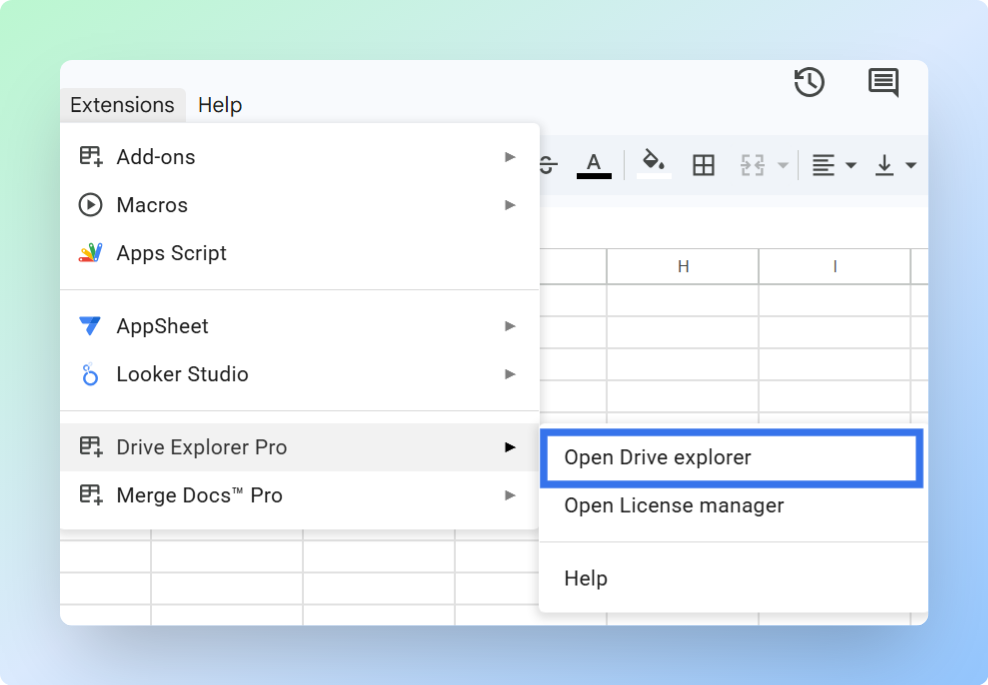
The Drive Explorer Pro sidebar opens on the right side of your sheet.
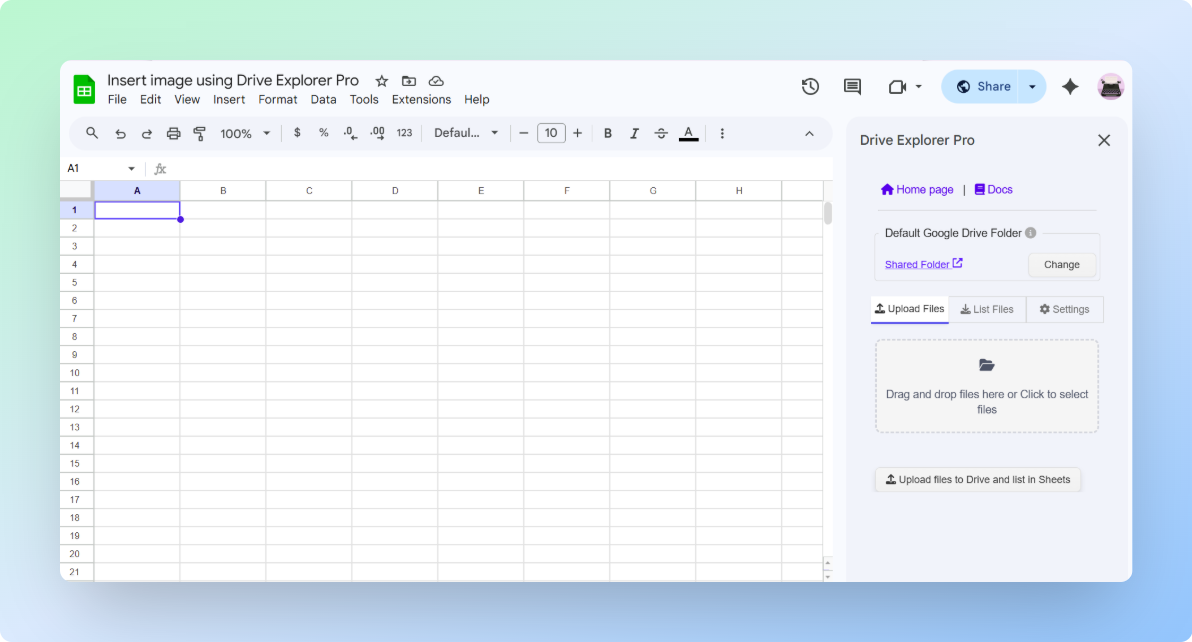
Note: If Drive Explorer Pro does not appear in the Extensions menu, refresh the Google Sheets page.
One-time setup: Complete the steps below once. Drive Explorer Pro saves your settings for future tasks.
Setting File Access and Image Preview Size
Set who can open the photo links and how large the image previews appear in your sheet. This prevents recipients from seeing a Request access page when they click a link.
-
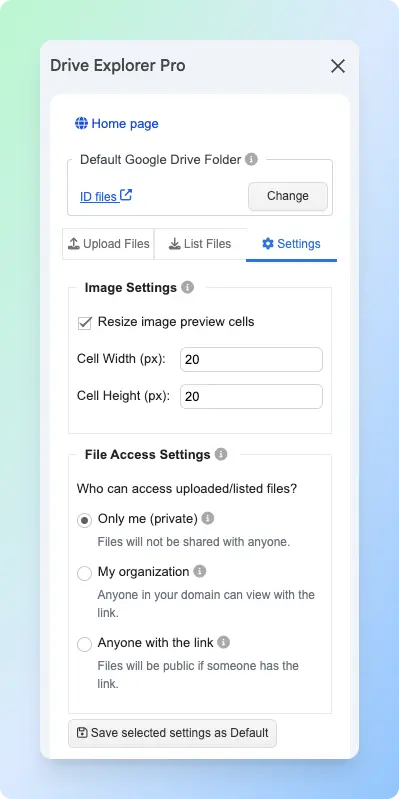
Click the Settings tab in the sidebar.
-
Under Image Settings, turn on Resize image preview cells.
-
Enter the Cell Width (px) and Cell Height (px).
Tip: A size between 100 and 150 pixels works well for most photo sheets. Use a smaller size for large sheets with many rows, or a larger size when recipients need to identify images without opening Google Drive.
-
Under File Access Settings, choose who can open the photo links.
Setting Who can open the photo When to use it Only me Only you Use when photos are not ready to share My organization People in your Google Workspace organization Use for internal team photos Anyone with the link Anyone with the link Use for sharing with clients, students, vendors, or anyone outside your organization -
Click Save selected settings as Default.
Important: This setting applies to the photos you select in this session. It does not change permissions on photos already in your Google Drive that you do not select.
Choosing Photo Details to Add to Google Sheets
Select the file details you want in your sheet. Each detail becomes a column, so every photo gets its own row.
-
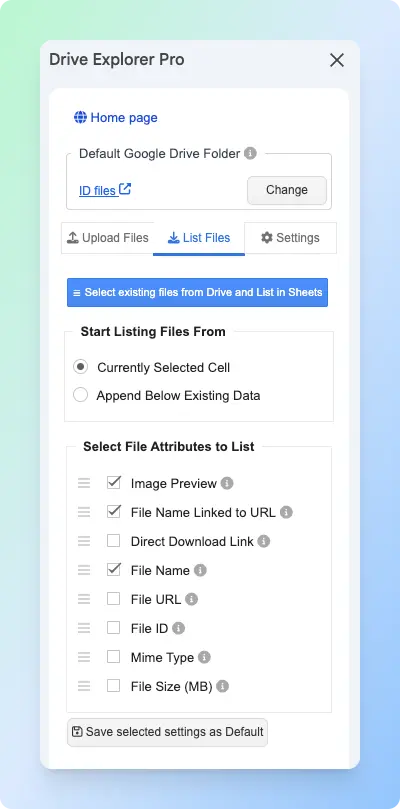
Click the List Files tab in the sidebar.
-
Under Start listing file from, choose where Drive Explorer Pro places the results.
Option When to use it Currently selected cell Use when you want results to start from the cell you selected Append below existing data Use when your sheet already has photo rows and you want to add new rows below -
Under Select File Attributes to list, enable the attributes you need.
Attribute What it adds to the sheet Why to include it Image Preview Thumbnail preview of the photo Identify the photo without opening the Drive link File Name Linked to URL Photo name as a clickable link Open the photo from the sheet File URL Standard Google Drive link Copy and share the photo link Direct Download Link Link that downloads the photo directly Useful when someone needs to save the file File Size (MB) Photo file size in megabytes Spot large files before sharing Mime Type File type such as image/jpegorimage/pngConfirm the image format For photo sharing, enable Image Preview, File Name Linked to URL, and File URL. These three columns let you see the photo, open it, and copy its link from the same row.
-
Drag the attributes into the order you want them to appear as columns.
-
Click Save selected settings as Default.
Listing Existing Google Drive Photos in Google Sheets
Select your photos from Google Drive and Drive Explorer Pro adds one row per photo to your sheet.
-
Click the List Files tab in the sidebar.
-
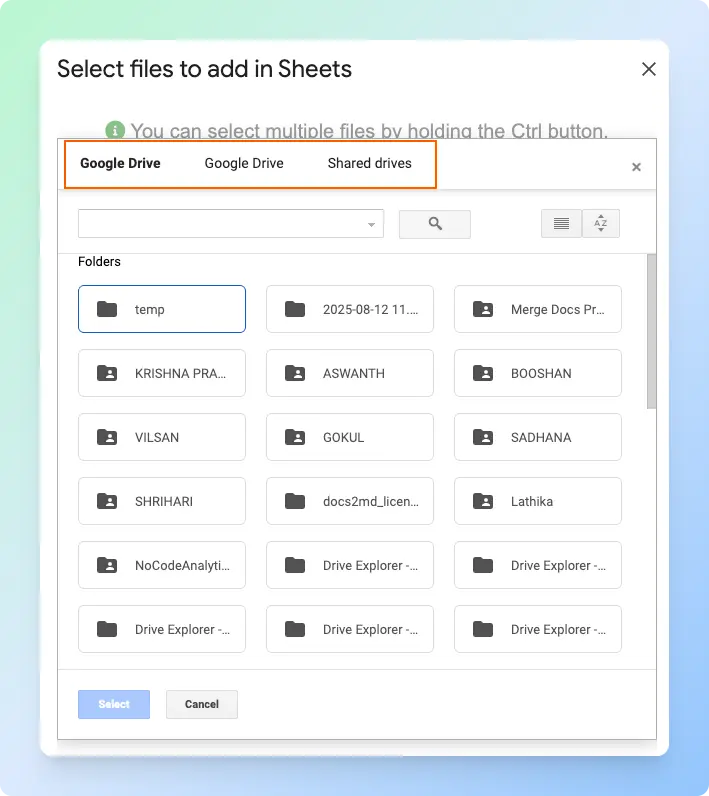
Click Select existing files from Drive and List in Sheets.
Important: Before clicking Select, make sure the photo files are set to Anyone with the link in Google Drive. Recipients won't be able to open the links if the files are still Restricted.
-
Browse to the folder that contains your photos.
-
Select the photos you want to add. Hold Ctrl on Windows or Command on Mac to select more than one photo.
-
Click Select.
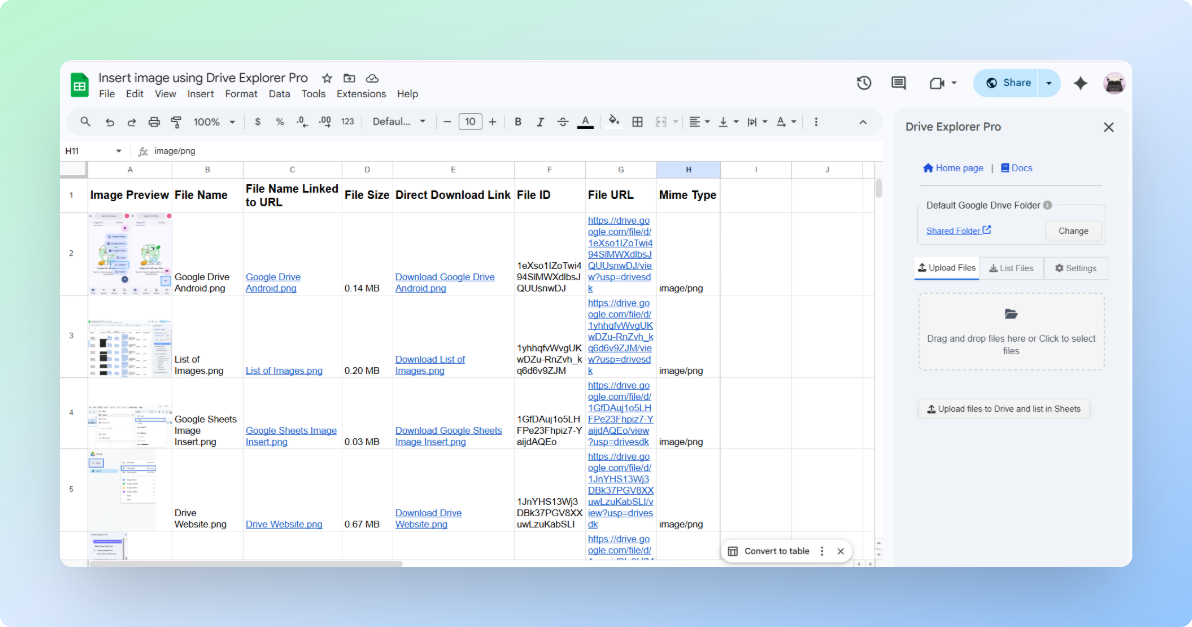
Drive Explorer Pro adds one row per photo.
Note: Do not close the Drive Explorer Pro sidebar while it is listing photos. Closing it early can stop the process before all photo rows are added to Google Sheets.
Tip: If you want recipients to download the photo right away instead of opening a preview, see how to create a direct download link in Google Drive.
Setting the Default Google Drive Folder
Choose where Drive Explorer Pro should save the uploaded photos. Setting this before uploading prevents photos from landing in the wrong folder.
- In the Drive Explorer Pro sidebar, find Default Google Drive Folder.
- Click Change.
- Browse to the Google Drive folder where you want to save the photos.
- Click Select.
Note: Drive Explorer Pro uploads photos to the folder selected before upload. If you need to move them later, move the files directly in Google Drive.
Uploading Photos from Your Computer
Use this when the photos are still on your computer. Drive Explorer Pro uploads them to Google Drive and adds their details to your sheet in one step.
-
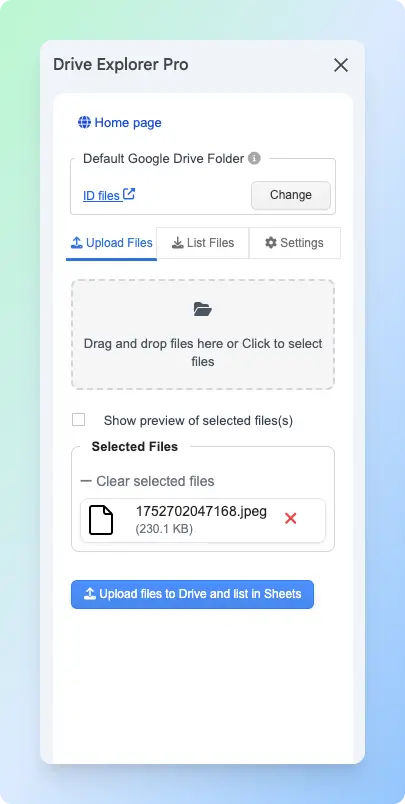
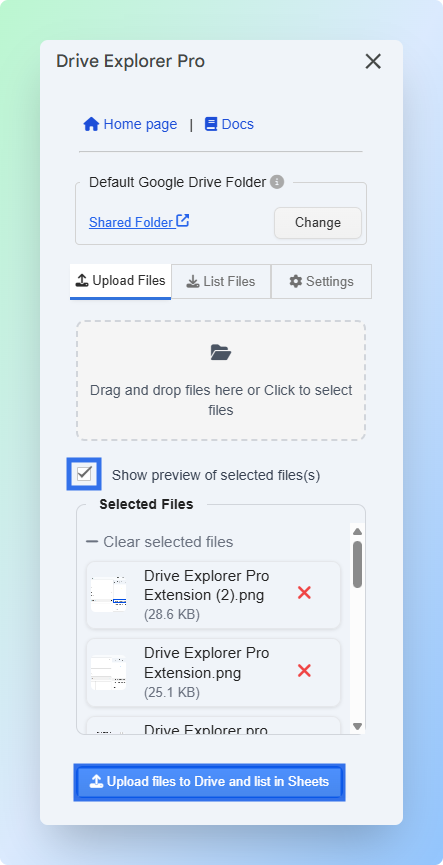
Click the Upload Files tab in the sidebar.
-
Drag your photos into the upload area, or click the upload area to browse and select photos from your computer.
-
Turn on Show preview of selected files to review the photos and their order before uploading.
-
Drag photos in the preview list to change their row order if needed.
-
Click Upload files to Drive and list in Sheets.
Important: Do not close the sidebar until the upload finishes. Closing it early can stop the upload and leave rows incomplete.
Sharing the Google Sheet and Photo Links
Important: The Google Sheets file and the photo files have separate sharing settings. Share the sheet with the people who need the list, and make sure the photo files use the access setting they need.
- Click Share in the top-right corner of the Google Sheets spreadsheet.
- Under General access, change Restricted to Anyone with the link.
- Set the role to Viewer.
- Click Copy link.
- Click Done.
Send the sheet link to your client, team, or recipient.
For more ways to link Google Drive files in Google Sheets, see how to link a Google Drive file to Google Sheets.
Conclusion
You can now share any photo in Google Drive with a link, from your computer, your phone, or in bulk from a Google Sheet.
For one photo or a folder, the native Google Drive method is the fastest option. Change General access to Anyone with the link, pick Viewer, and copy. The whole process takes under a minute.
Where it slows down is when you have many photos and need each one logged with a name, a preview, and a link in one place. Copying links one by one from Google Drive doesn't scale. Drive Explorer Pro writes every link, preview, and file name into your sheet in a single action, so you get one organized sheet you can review, filter, and share without touching Google Drive again.