How to Upload a Video to Google Drive and Share a Link on Mobile
Google Drive is useful when a video is too large to send through email, WhatsApp, or another messaging app. Instead of sending the video file directly, upload it to Google Drive and share a link.
Before sharing the link, make sure the video's access setting is configured correctly. Otherwise, recipients may see a Request access message instead of the video.
In this guide, you will learn how to upload a video to Google Drive and share a link on Android, iPhone, and iPad.
Table of Contents
Prerequisites
- A Google account
- The Google Drive app installed - Android or iOS
- The video saved to your phone's camera roll or files app
Uploading and Sharing on Android
You can upload a video and share a working link entirely from the Google Drive app on Android.
Uploading Your Video
Important: Keep Google Drive open until the upload finishes. Large videos can take several minutes on a mobile connection. Copy and share the link only after the upload is complete.
-
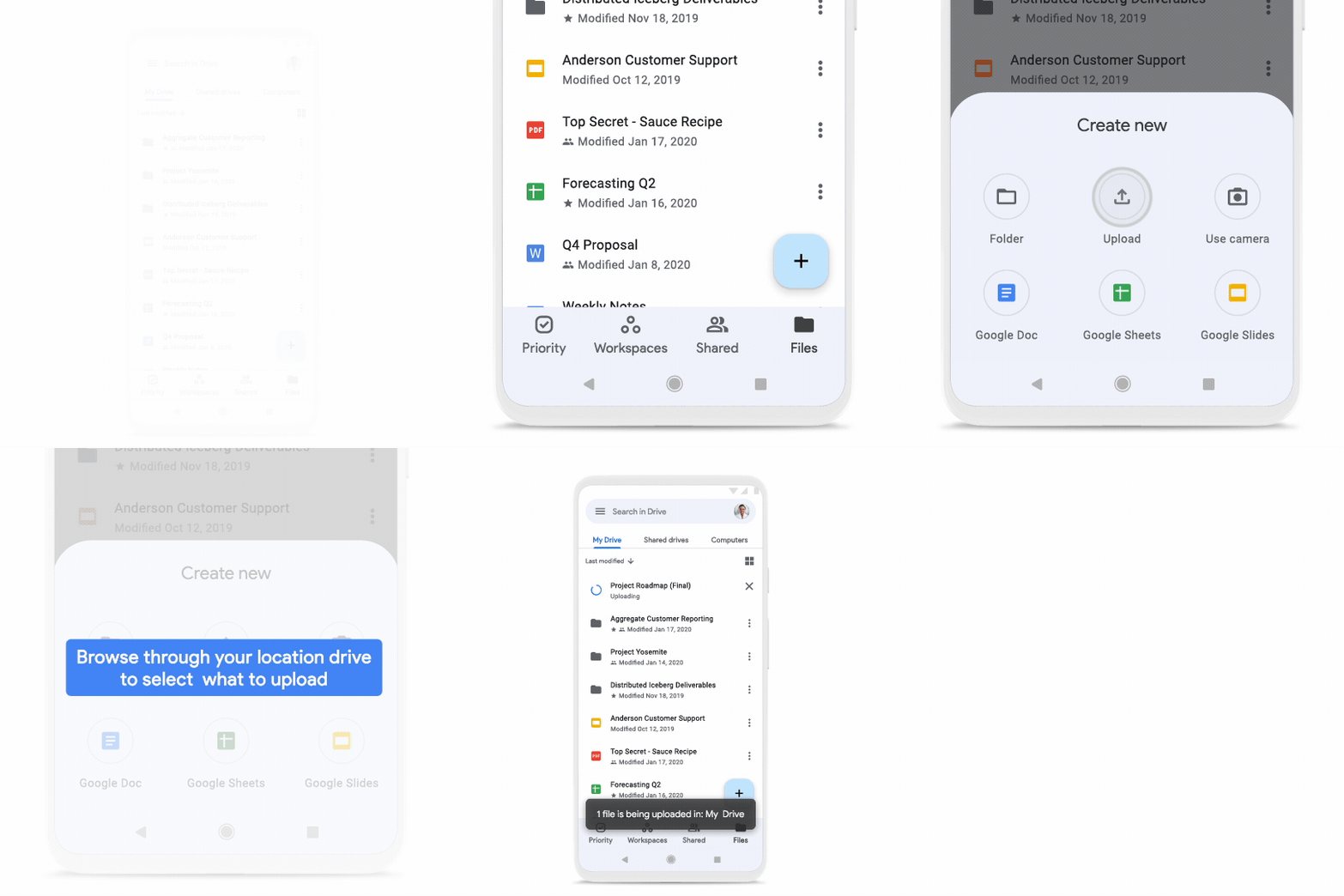
Open the Google Drive app and tap + (the blue button at the bottom right).
-
Tap Upload.
-
Your phone opens a file picker showing Recents. Tap your video if it appears there. If you don't see it, tap Images or Videos at the top to filter, or browse to the folder where the video is saved.
-
On the upload screen, tap Location to choose a folder. If you skip this, the video goes to My Drive.
Tip: My Drive is the root of your Google Drive. You can still find and share the video from there.
-
Tap Upload.
The file name and a progress bar appear at the bottom of the screen. Wait for the bar to reach 100% before moving to the next step.
You now have the video in your Google Drive and it is ready to share. For more details on uploading from Android, see Upload files to Google Drive.
Note: After the upload finishes, Google Drive will take a few seconds to process the video before it plays in a browser.
If you plan to share multiple videos with the same people, move them into one Drive folder and share the folder link instead. See how to create a shared Google Drive folder to set up the folder and copy the link in a few steps. You send one link once, and every video you add to that folder becomes available to everyone who has it.
Sharing Your Video
You can create a shareable link from the Google Drive app in a few taps. By default, Google Drive sets every new file to Restricted - only people you invite by name or email can open it.
Change this to Anyone with the link before copying the link, or recipients will see a Request access page.
-
Tap More (the three-dot icon) next to the video name.

-
Tap Share.
-
Tap the three-dot icon in the top-right corner of the sharing screen.
-
Tap Manage access.
-
Under General access, tap Restricted.
-
Select Anyone with the link.
-
Confirm the role is set to Viewer.
Tip: Viewer lets the recipient watch the video but not edit or delete it. Viewers can download the file by default. Only switch to Editor if you need the recipient to make changes.
-
Tap the Copy link icon in the top-right corner. The link is copied to your clipboard.
You now have a working video link copied to your clipboard. To send it, go to the Sending the Link section below.
Uploading and Sharing on iPhone or iPad
You can upload a video and share a working link entirely from the Google Drive app on iPhone or iPad. The steps follow the same flow as Android but the button labels and file picker look different - this section covers those differences.
Uploading Your Video
Important: Keep Google Drive open until the upload finishes. Large videos can take several minutes on a mobile connection. Copy and share the link only after the upload is complete.
-
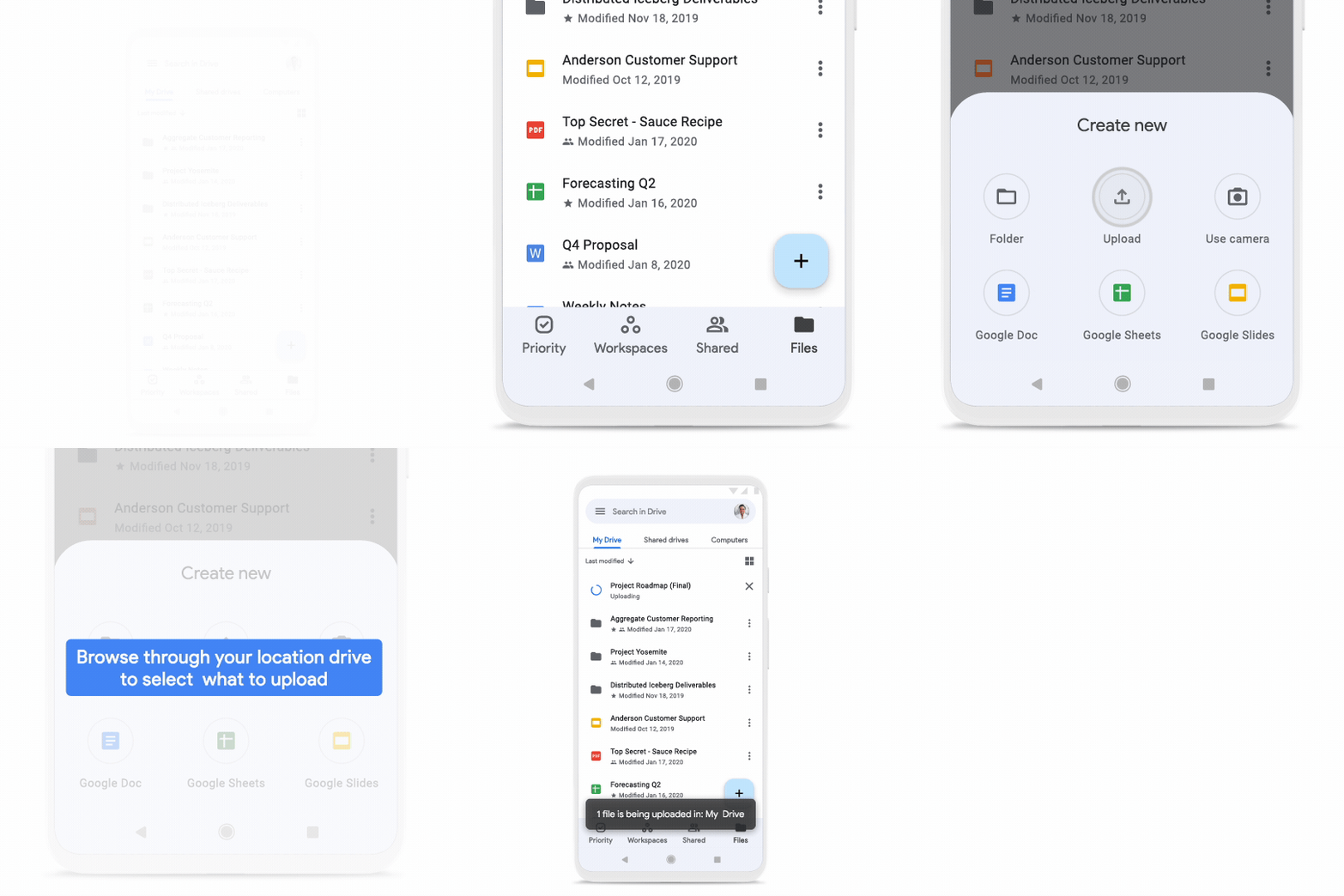
Open the Google Drive app and tap + at the bottom of the screen.
-
Tap Upload files.
-
A picker opens with two options. Choose where your video is saved:
- Tap Photos & Videos to pick from your camera roll.
- Tap Browse to find a video saved in your Files app.
-
Tap your video to select it.
-
On the upload screen, tap Location to choose a folder. If you skip this, the video goes to My Drive.
-
Tap Upload.
The file name and a progress bar appear at the bottom of the screen. Wait for the bar to finish before moving to the next step.
Note: After the upload finishes, Google Drive may take a few minutes to process the video. If the recipient sees a spinning icon, wait two to three minutes and try again.
You now have the video in your Google Drive and it's ready to share. For more details on uploading from iPhone or iPad, see Upload files to Google Drive.
Sharing Your Video
You can create a shareable link from the Google Drive app in a few taps. By default, Google Drive sets every new file to Restricted - only people you invite by name or email can open it. Change General access to Anyone with the link before you copy the link, or the recipient will see "Request access".
-
Tap More (the three-dot icon) next to the video name.

-
Tap Share.
-
Tap the three-dot icon in the top-right corner of the sharing screen.
-
Tap Manage access.
-
Under General access, tap Restricted.
-
Select Anyone with the link.
-
Confirm the role is set to Viewer.
-
Tap the Copy link button in the top-right corner. The link is copied to your clipboard.
You now have a working link on your clipboard. Go to the Sending the Link section below to send.
Sending the Link Through WhatsApp, Email, or Any App
A Google Drive link works in WhatsApp, Gmail, iMessage, Google Forms, chat apps, and most other places where you can paste text.
When you are ready to send the video, open the app you want to use, long-press the message field, and tap Paste.
Sharing a Google Drive link lets you avoid file-size limits and quality reduction. You can also send the same link to multiple people without uploading the video again.
Note: Work or school accounts may limit sharing. If you do not see Anyone with the link, contact your Google Workspace admin. See Google's guide to sharing files for more on access settings.
If you need to upload and share videos from a desktop, or want to track multiple video links in Google Sheet, see how to upload a video to Google Drive and share a link for the full desktop workflow.
Note: You can also revoke the link later. Open the sharing settings for the video, change General access back to Restricted, and the same link will stop working for other people. The video stays in your Google Drive. Only the access setting changes.
Conclusion
You can now upload a video from your phone to Google Drive and share a link that others can open.
Before sending the link, make sure General access is set to Anyone with the link and the role is set to Viewer so recipients can watch the video without requesting access.