How to Create a Shared Google Drive Folder (Step-by-Step)
Google Drive lets you create a folder and share it with other people. Your team, class, or family can upload, view, and edit files in one place.
But creating a folder does not automatically share it. You still need to choose who can open the folder and what they can do inside it. If you skip this step, people who click the link may see a Request access screen instead of the folder.
In this guide, you will learn how to create a shared Google Drive folder, set the right permissions, create subfolders, and avoid request-access errors.
Table of Contents
Prerequisites
- A Google account
- The Google Drive app on your phone, if you want to create or share the folder from mobile. Install it for Android or iPhone and iPad
Understanding Permissions
Every person you share the folder with gets one permission level:
| Permission | What they can do |
|---|---|
| Viewer | Open and read files only |
| Commenter | Add comments but not edit content |
| Editor | Upload, edit, move, and delete files |
Important: Give Editor access only to people who need to upload, move, or manage files inside the folder. Editors can change folder contents and may be able to share the folder with others.
Creating a Shared Google Drive Folder on the Web
First, create the folder in Google Drive. After the folder is created, it appears in My Drive. Then you can choose how to share it. Use this method when you're on a desktop or laptop.
To create a folder inside a Shared Drive instead, click Shared drives in the left sidebar, open the drive, then follow the same steps.
Creating the Folder
-
Open Google Drive and sign in.
-
Click + New in the top-left corner.
-
Select New folder.
-
Enter a name for your folder.
Tip: Choose a clear folder name before sharing. If you rename the folder later, the new name appears for everyone who has access.
-
Click Create.
Your new folder appears in My Drive.
Sharing with Specific People
Use this when you want to control exactly who has access.
-
Right-click the folder and click Share.
-
Enter the email addresses of the people you want to add.

-
Click the permission dropdown next to the email field.
-
Choose Viewer, Commenter, or Editor.
-
Optional: add a message to the notification email.
-
Click Send.
Each person receives an email with a direct link to the folder. If someone cannot upload files, open Share, find their name, and change their role to Editor.
For more details, see Share files from Google Drive.
Sharing via Link
Use link sharing when multiple people need access through one link. For private or sensitive folders, add people by email instead, so you can control exactly who has access.
-
Right-click the folder and click Share.
-
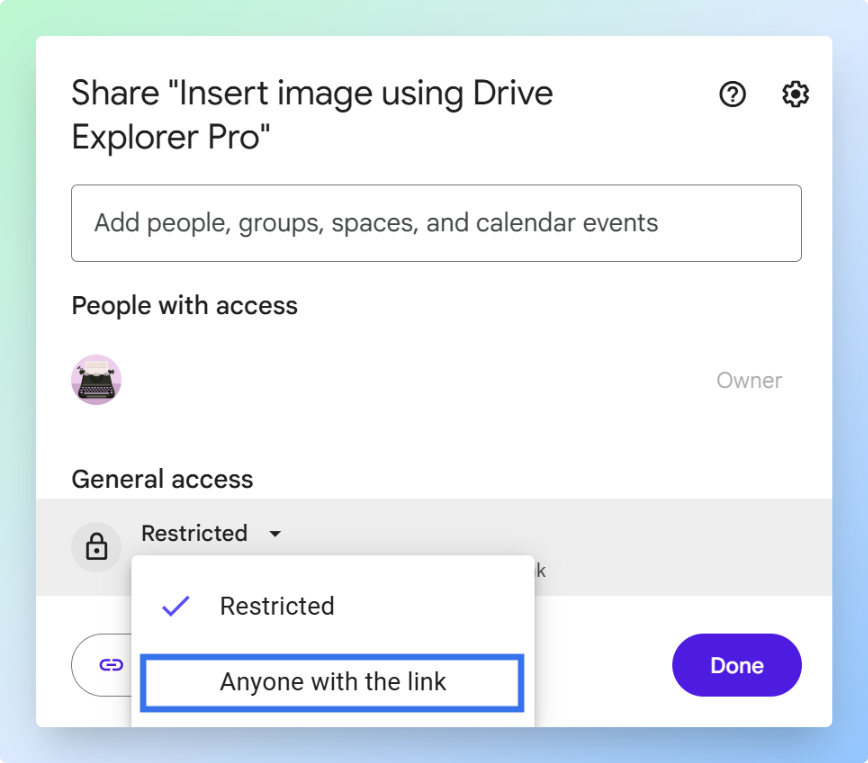
Under General access, click the dropdown.
-
Choose Anyone with the link.
-
Set the permission level to Viewer, Commenter, or Editor.
-
Click Copy link.
-
Click Done.
Note: Use Restricted for private folders. Use Anyone with the link only when everyone who receives the link should be able to open the folder. For a full guide to Google Drive sharing options, see how to create a Google Drive link to share files.
Paste the link where you want to share it. Anyone with the link can open the folder with the permission level you selected.
Once the folder is shared, see how to upload files to a shared Google Drive folder to start adding files.
If someone sees a Request access screen, the folder is still restricted for that person. Open Share again. Then either add that person by email or change General access to Anyone with the link.
Tip: To open this folder quickly without searching Google Drive each time, right-click the folder, click Organize → Add shortcut, and choose My Drive. Use Add shortcut, not Move. Moving the folder removes it from its original location and breaks access for everyone else.
Creating a Shared Google Drive Folder on Mobile
You can create and share a Google Drive folder from your phone using the Google Drive app.
Use this method when you need to set up a shared folder from Android or iPhone and let others upload, view, or manage files from their own devices.
Creating the Folder on Mobile
- Open the Google Drive app.
- Tap Add (+) in the bottom-right corner.
- Tap Folder.
- Enter a name for the folder.
- Tap Create.
The folder is created in the location you are currently viewing. Open the folder before uploading or sharing files inside it.
Sharing the Folder on Mobile
To share with specific people:
- Tap the three-dot menu (⋮) next to the folder name.
- Tap Share.
- Enter the email addresses of the people you want to add.
- Choose Viewer, Commenter, or Editor.
- Tap Send.
To share with a link:
- Tap the three-dot menu (⋮) next to the folder name.
- Tap Manage access.
- Under General access, change Restricted to Anyone with the link.
- Choose Viewer, Commenter, or Editor.
- Copy the link and share it where needed.

If people need to upload photos or files from mobile, give them Editor access. Then they can open the shared folder in the Google Drive app, tap Add (+), and upload files into that folder.
Tip: If you need to add paper documents, receipts, forms, or notes to the shared folder from your phone, use the Google Drive app's Scan option and save the scan inside the shared folder.
Once your folder is shared, you can organize it further with subfolders.
Creating Subfolders Inside a Shared Folder
Open the shared folder before creating the subfolder. This makes sure the new folder is created inside the shared folder, not somewhere else in Google Drive.
On desktop:
- Click + New.
- Click New folder.
- Enter a folder name.
- Click Create.
On mobile:
Open the shared folder, tap +, tap Folder, enter a folder name, and tap Create.
In most cases, subfolders use the same sharing permissions as the main folder. This means people who can open the main folder can also open the subfolders.
Tip: Keep your structure clear. For example:
📁 Project → 📁 Photos | 📁 Documents | 📁 Invoices.
Choosing Between a Shared Folder and Shared Drives
The steps in this guide create a shared folder in My Drive. This works well for personal sharing, small groups, families, classes, clients, and short projects.
For company or long-term team files, use Shared drives if your organization provides them. In a regular shared folder, the files belong to the person who created them. If that person leaves or deletes their account, the files can be lost. In a Shared drive, files belong to the team or organization, not one person's My Drive.
| Option | Best for |
|---|---|
| Shared folder in My Drive | Personal sharing, small groups, families, classes, clients, and short projects |
| Shared drives | Company teams, long-term projects, and files that should stay with the organization |
Note: If you do not see Shared drives in the Google Drive sidebar, your account may not be on a Google Workspace plan.
For more details, see Google's guides on what Shared drives are and how to create a Shared drive.
Conclusion
Shared Google Drive folders work best when access is set clearly from the start. Choose who can open the folder, who can edit files, and who only needs view access.
For most folders, give Editor access only to people who need to upload, move, or manage files. Set everyone else as Viewer or Commenter.
If you want a searchable record of the files inside your shared folder, see how to list files from Google Drive into Google Sheets. It logs file names, links, sizes, and types in one place without opening each file one by one.