How to Download All Files from Google Drive at Once
Google Drive stores your files in the cloud, but downloading everything to your computer is not always straightforward. There is no dedicated Download all button, and downloading large folders as a ZIP file can be slow, fail midway, or split into multiple ZIP files depending on the folder size.
The right method depends on your goal. A ZIP download works for one folder in seconds. Google Takeout is better when you need everything in your account and can wait for Google to prepare the export.
In this tutorial, you will learn how to download all files from Google Drive at once using two methods, along with guidance on when to use each one.
Table of Contents
Prerequisites
Before you start, make sure you have enough storage space on your computer. Large Google Drive folders and Google Takeout exports can take time to prepare and download.
- A Google account
- Access to the Google Drive files you want to download
- Access to Google Takeout, if you want to export everything from Google Drive
Downloading Google Drive Files as a ZIP
You can download an entire Google Drive folder as a ZIP file directly from your browser.
Use this method when you need a quick, one-time download of one Google Drive folder or a small group of files to your computer.
Downloading a Folder as a ZIP from Google Drive
Google Drive packages the selected files into a ZIP file, then saves it to your computer.
Downloading a Folder
-
Go to Google Drive.
-
Right-click the folder you want to download.

-
Click Download.
-
Open your Downloads folder.
-
Right-click the ZIP file and select Extract All on Windows, or double-click the ZIP file on Mac.
Your files appear in a new folder named after the ZIP file.
Google Docs, Google Sheets, and Google Slides files are downloaded as .docx, .xlsx, and .pptx files. Open them once after download to check the formatting, especially if the layout needs to stay the same.
Note: Large folders can take a few minutes before the ZIP file starts downloading. The time depends on the folder size and your internet speed.
Downloading Specific Files
You do not have to download the whole folder. If you only need selected files, choose them first and then download them together.
- Click one file to select it.
- Hold Ctrl on Windows or Command on Mac, then click each additional file.
- To select a range of files, hold Shift and click the last file in the range.
- Right-click any selected file.
- Click Download.
For more details, see Download files from Google Drive.
Result: Your files are saved to your computer as a ZIP archive. If you want to log file links in Google Sheets so you or your team can download individual files at any time, see how to create a direct download link in Google Drive.
The ZIP method is best for small folders or selected files. If Google Drive takes too long, stops preparing the ZIP, or downloads only part of the folder, use Google Takeout instead.
Exporting All Google Drive Files with Google Takeout
Google Takeout is a free Google service that lets you export all your data from Google products, including Google Drive, as a downloadable archive. It creates the archive in the background and sends you a download link when it is ready.
Use this method when you need to export everything in your Google Drive account and can wait for Google to prepare the archive.
Important: A Takeout export is a snapshot. Files added or edited after you start the export may not appear in the downloaded archive.
Opening Google Takeout
- Go to Google Takeout.
- Make sure you are signed in to the Google account that owns the Drive files you want to export.
Selecting Only Google Drive
-
Click Deselect all at the top of the product list.
This stops Google Takeout from exporting Gmail, Photos, Calendar, and other Google products you do not need.
-
Scroll down to Drive and check the box beside it.
Google Takeout shows that Drive includes files stored in My Drive and Computers.
-
Review the options under Drive.
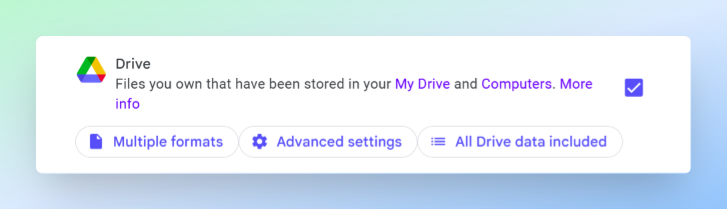
- Multiple formats controls how Google Docs, Sheets, Slides, and other Google file types are converted in the export.
- Advanced settings contains extra Drive export options. For a normal full Drive export, you can leave both unchanged.
- All Drive data included lets you choose whether to export all Drive data or only selected Drive folders.
-
Scroll down and click Next step.
Choosing the Export Settings
On the export settings screen, choose how Google should create and deliver the archive.
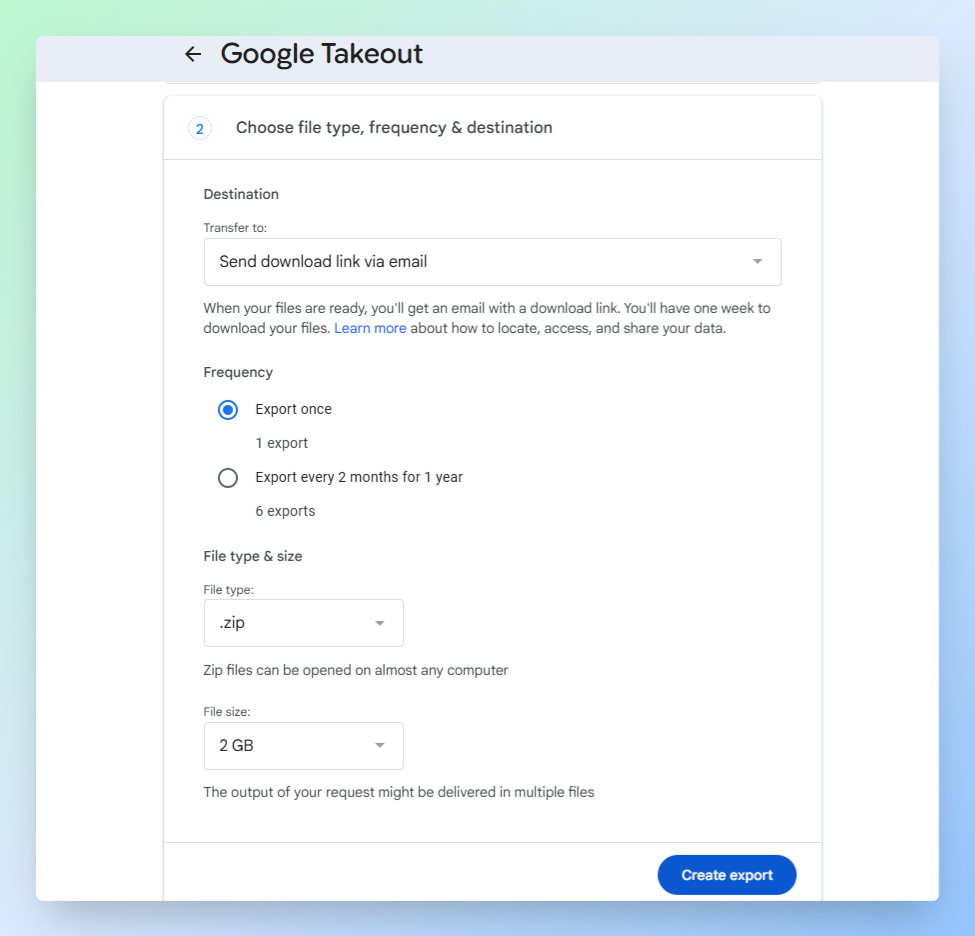
| Setting | Options | What to choose |
|---|---|---|
| Destination | Send download link via email, Add to Drive, Add to Dropbox, Add to OneDrive, Add to Box | Send download link via email. Google emails you when the export is ready. |
| Frequency | Export once, Every 2 months for 1 year | Export once unless you want Google to create repeated exports. |
| File type | .zip, .tgz | .zip. It opens easily on Windows and Mac. |
| Archive size | 1 GB, 2 GB, 4 GB, 10 GB, 50 GB | 2 GB. Smaller archive parts are easier to download and retry if the download stops. |
After choosing the settings, click Create export.
Downloading the Takeout Archive
Google shows an export progress screen after you create the export. You can close the browser while Google prepares the archive.
When the export is ready:
- Open the email from Google with the subject Your Google data is ready to download.
- Click the download link.
- Sign in again if Google asks you to confirm your account.
- Click Download next to each archive file.
Tip: If Google splits the export into multiple ZIP files, download all of them. Each ZIP file contains a different part of your Drive export.
For more details, see Download your Google data.
Result: Your full Google Drive is saved as a ZIP archive on your computer.
Choosing the Right Method
| ZIP Download | Google Takeout | |
|---|---|---|
| Best for | One folder or selected files | Full Google Drive account export |
| Download time | Fast for small folders | Slower — Google prepares the archive in the background |
| Creates a one-time archive | ✅ Yes | ✅ Yes |
| Exports all Google Drive data | ❌ No | ✅ Yes |
| Stays updated after setup | ❌ No | ❌ No |
| Works better for very large exports | ❌ Can fail with large selections | ✅ Yes |
If your goal is to upload files and create shareable links at the same time, see how to upload files to Google Drive and share a link.
Conclusion
Use ZIP download when you need one folder or a group of files on your computer quickly. Use Google Takeout when you need a full export of everything in your Google Drive account.
Both methods create a one-time copy. Files you add or edit after the download or export will not appear in the saved archive, run a fresh download or export when you need an updated copy.