Troubleshoot Common Google Sheets Issues
When forecasts fail to refresh or dashboards break before reviews, spreadsheet instability becomes a forecasting, reporting, and decision-risk event. While Google Sheets handles moderate workloads well, expanding datasets, complex formulas, cross-sheet dependencies, and external integrations increase failure risk.
This guide follows a structured escalation framework:
- Formula Integrity
- Environment & Access
- Architectural & Workflow Stability
Common issues include:
#REF!,#VALUE!,#N/A,#DIV/0!,#NAME?,#ERROR!- Broken
IMPORTRANGEconnections - Permission misconfigurations
- Recalculation delays
- Frozen or non-loading sheets
Basic familiarity with formulas and sharing permissions is assumed.
Failures typically surface first at the formula layer. Before addressing performance or architectural design, isolate immediate reference and access errors.
Table of Contents
Identifying Immediate Formula and Access Errors
Most failures originate from reference breaks, data-type conflicts, or access misalignment.
Common Error Codes and Root Causes
-
#REF! – Deleted or invalid cell reference
Example:Sheet2!A1returns#REF!if Sheet2 is removed. -
#VALUE! – Incompatible data types in calculations
Example:=A1+B1where A1 contains text. -
#N/A – Lookup value not found in range
Common inVLOOKUP,HLOOKUP, orXLOOKUP. -
#DIV/0! – Division by zero.
-
#NAME? – Misspelled function or undefined named range.
-
#ERROR! – Syntax error or incomplete expression.
Always trace errors upstream through the dependency graph before modifying downstream formulas. Surface fixes often conceal structural faults.
Access and Linking Failures
-
Incorrect sharing permissions blocking edits or imports.
-
Restricted Drive file visibility causing image or link load failures.
-
Synchronization delays due to unstable network connections or browser background throttling.
If formula integrity and permissions are confirmed, the next layer to evaluate is environmental stability.
Validate Environment and Access Configuration
Before restructuring formulas, confirm system stability.
- Verify internet connectivity
- Confirm Drive sharing permissions
- Clear browser cache and cookies
- Test in incognito or alternate browser
- Ensure browser version is current
Browser instability, throttled background tabs, or expired sessions frequently mimic formula errors. Confirming environment integrity prevents unnecessary architectural modifications.
If environment stability is confirmed and issues persist, performance constraints within the sheet architecture must be evaluated.
Diagnose Performance and Scaling Constraints
As spreadsheets grow, recalculation expands across dependency graphs.
Performance degradation typically stems from:
- Large dependency trees from nested or cross-sheet formulas
- Volatile functions (
NOW(),TODAY(),RAND(),RANDBETWEEN(),INDIRECT()) triggering full recalculation - Full-column references (
A:A) forcing evaluation of unused cells - Excessive
IMPORTRANGEorIMPORTXMLcalls introducing network latency - Approaching the 10 million cell limit per spreadsheet file
- As spreadsheets approach structural limits, performance degradation often becomes nonlinear and unpredictable.
- Concurrent multi-user edits causing version conflicts
Distinguish between:
-
Rendering lag → scroll stutter, delayed UI input
-
Recalculation lag → loading spinner in cell / formula delay
Surface-level corrections rarely resolve architectural inefficiencies embedded in the dependency graph.
If formula architecture is stable but operational inconsistencies persist, instability often originates from external file workflows rather than internal sheet logic.
Stabilize File and Image Management Workflows
Operational spreadsheets frequently degrade due to manual file handling.
In sales tracking, proposal management, or catalog systems, manual Drive navigation can introduce:
- Row misalignment
- Broken image links
- Metadata inconsistency
- Duplicate file versions
Drive Explorer Pro integrates Google Drive directly inside Google Sheets, enabling:
- Controlled multi-file selection
- Direct row-aligned insertion
- Metadata extraction (file name, URL, owner, path)
- Eliminates the need for custom Apps Script maintenance while preserving administrative visibility.
To operationalize structured file control, integrated file management tools can reduce manual intervention.
Structured File Management Example
Install Drive Explorer Pro from the Google Workspace Marketplace.Launch it from Extensions → Drive Explorer Pro → Open.
The integrated sidebar enables controlled multi-file selection and aligned insertion, reducing manual navigation risk while preserving row integrity.
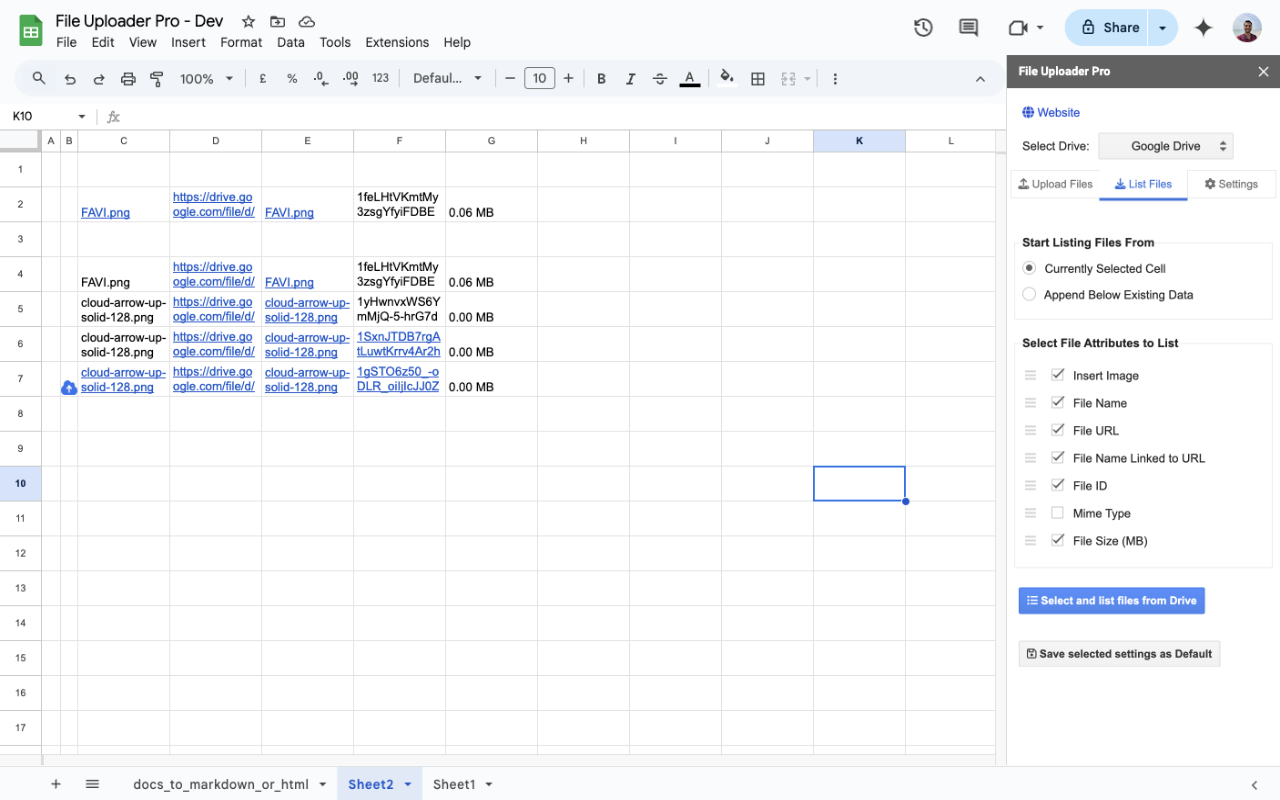
Refer to the Drive Explorer Pro documentation for detailed configuration guidance.
Preventing Future Failures
Long-term stability depends on architectural discipline.
- Modularize large datasets
- Separate raw data from calculation layers
- Minimize volatile and recursive formulas
- Reduce cross-sheet and cross-file dependencies
- Archive inactive data periodically
Preventive architecture shifts spreadsheet management from reactive repair to proactive system design.
If disciplined architecture does not resolve scaling constraints, functional limits have likely been reached.
When Structural Extensions Become Necessary
Certified Google Workspace extensions extend functionality without introducing unmanaged Apps Script dependencies, preserving auditability and administrative control.
Persistent instability after structural optimization signals systemic design failure rather than isolated defects.
When to Rebuild Instead of Repair
If circular dependencies persist, recalculation latency remains high, or architecture becomes opaque, rebuilding may be more efficient than incremental fixes.
Operational spreadsheets should be treated as systems - not temporary documents.
Escalating through diagnosis, environment validation, performance optimization, and workflow control ensures failures are addressed at their root layer rather than masked at the surface.
Conclusion
As spreadsheets evolve into operational infrastructure, reliability depends on structured architecture, not reactive troubleshooting. Sustainable stability comes from disciplined diagnostics, controlled dependency design, and deliberate performance management rather than incremental surface fixes.
By enforcing architectural discipline across formulas, access control, scaling limits, and file workflows, Google Sheets shifts from a convenience utility to a dependable operational system. Addressing failures at their root layer ensures long-term maintainability, transparency, and performance integrity.